
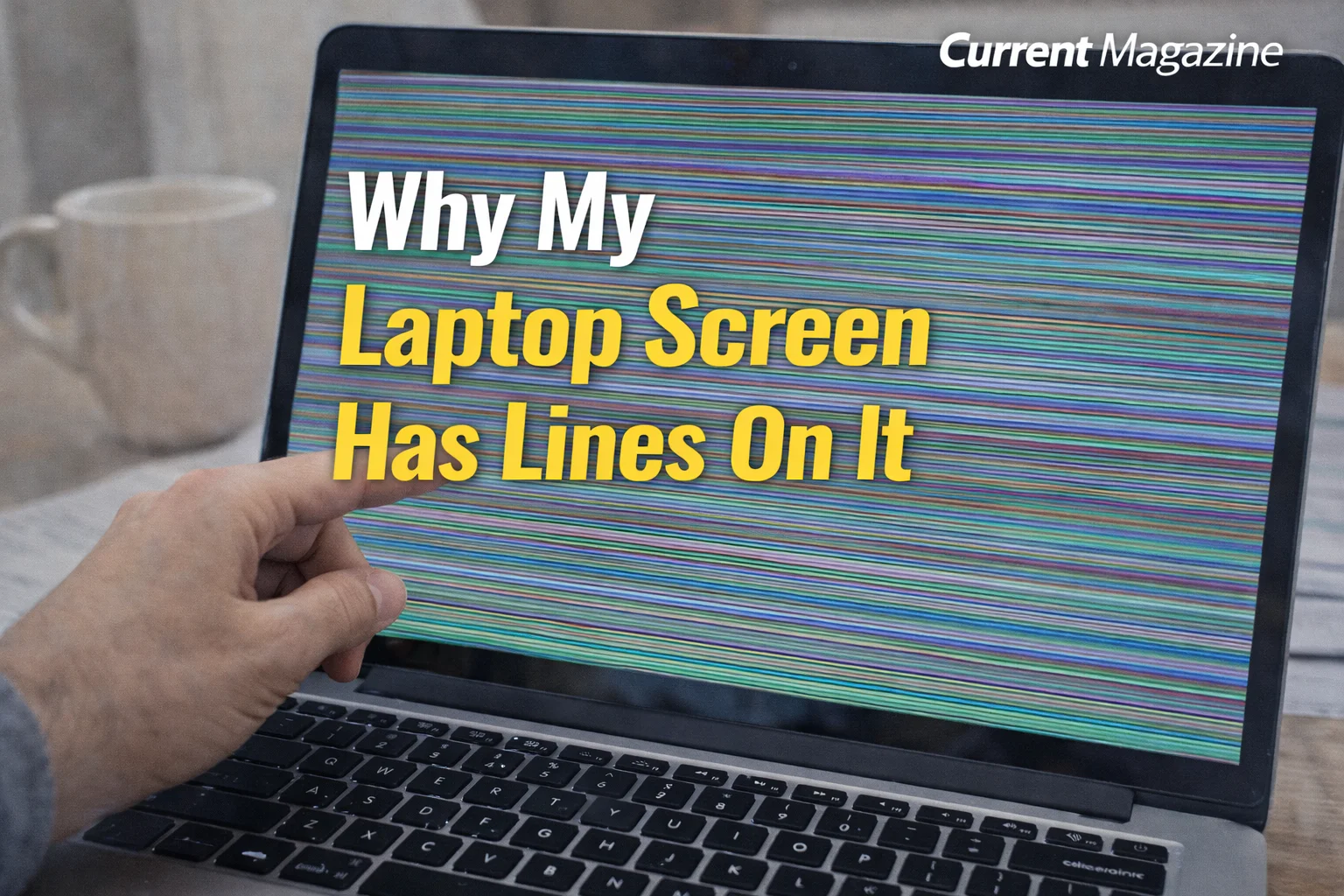
If you’re asking “why my laptop screen has lines on it,” you’re dealing with a frustrating display problem that can significantly impact your laptop’s usability. Lines on laptop screen, whether they appear as vertical lines, horizontal lines, or colored stripes, can stem from various causes including hardware damage, loose cable connections, graphics driver issues, or display panel failure. Understanding the reasons behind laptop screen lines and knowing how to troubleshoot screen line problems will help you determine whether you can fix the issue yourself or need professional repair. This comprehensive guide covers everything you need to know about lines appearing on your laptop display, from diagnosis to solutions.
Understanding Lines on Laptop Screen
Lines on your laptop screen can appear in different forms, each potentially indicating different underlying problems. These visual defects disrupt your viewing experience and may worsen over time if left unaddressed. The lines might be thin or thick, single or multiple, and can appear in various colors including white, black, green, red, or rainbow-colored.
The severity and behavior of these lines provide important clues about their cause. Lines that appear immediately when you turn on your laptop suggest hardware issues, while lines that develop after the operating system loads might indicate software or driver problems. Lines that flicker or move suggest different issues than static, permanent lines. Understanding these patterns helps diagnose the root cause.
Types of Lines That Appear on Laptop Screens
Vertical Lines
Vertical lines run from the top to the bottom of your screen. These are among the most common display problems and typically indicate issues with the LCD panel itself, the display cable connection, or the graphics processing unit (GPU). Vertical lines can be single or multiple, thin or thick, and may span the entire height of the screen or only portions of it. They often result from damaged pixels in a column or problems with the display’s column drivers.
Horizontal Lines
Horizontal lines stretch across your screen from left to right. These lines similarly can be single or multiple and often suggest problems with the display panel’s row drivers, loose or damaged cable connections, or graphics card issues. Horizontal lines sometimes appear as flickering bands that move up or down the screen, which particularly points to refresh rate or signal problems.
Colored Lines
Lines can appear in various colors – green, red, blue, white, pink, or multicolored rainbow effects. Colored lines often indicate specific component failures. For example, missing one of the primary colors (red, green, or blue) suggests problems with that color channel in the display or graphics system. Bright, vibrant colored lines typically point to GPU issues, while faded or discolored lines suggest LCD panel degradation.
Dead or Stuck Pixel Lines
Sometimes what appears as a line is actually a row or column of dead or stuck pixels. Dead pixels appear as black dots or lines, while stuck pixels show as permanently bright spots in red, green, blue, or white. These result from manufacturing defects or physical damage to the pixel transistors.
Common Causes of Lines on Laptop Screen
Damaged LCD Panel
The LCD (Liquid Crystal Display) or LED panel is the most fragile component of your laptop. Physical damage from drops, impacts, pressure on the closed lid, or even manufacturing defects can cause lines to appear. The liquid crystal layer or the thin film transistor (TFT) array can develop faults that manifest as permanent lines. Panel damage is one of the most serious causes because it typically requires complete screen replacement.
Physical pressure is a common culprit – placing heavy objects on your closed laptop, gripping the screen too tightly when opening, or accidentally sitting on your laptop can all damage the delicate panel layers. Even slight pressure can crack internal components or misalign layers, creating visible lines.
Loose or Damaged Display Cable
Your laptop screen connects to the motherboard through a ribbon cable called the LVDS (Low-Voltage Differential Signaling) cable or eDP (Embedded DisplayPort) cable, depending on your laptop model. This cable runs through the hinge mechanism and is subject to stress every time you open or close your laptop. Over time, or due to manufacturing defects, this cable can:
- Become loose at either connection point
- Develop internal breaks from repeated flexing
- Sustain damage from liquid spills that seep into the hinge area
- Wear out from age and use
When the display cable is compromised, it cannot properly transmit the video signal, resulting in lines, flickering, distorted colors, or intermittent display problems. Cable issues are often intermittent initially – lines may come and go when you adjust the screen angle.
Faulty Graphics Card or GPU
Your graphics processing unit (GPU) generates the images displayed on your screen. Whether you have integrated graphics (built into the CPU) or a dedicated graphics card, GPU problems can manifest as lines on your display. GPU failures can result from:
- Overheating due to blocked vents or failed cooling fans
- Age-related degradation of the GPU chip
- Manufacturing defects (particularly in certain batches)
- Electrical surges or power issues
- Physical damage from drops or impacts
GPU-related lines typically affect both the laptop screen and any external monitors you connect, whereas display panel issues only affect the laptop’s built-in screen.
Outdated or Corrupted Graphics Drivers
Software issues, particularly problems with your graphics drivers, can cause display abnormalities including lines. Graphics drivers act as translators between your operating system and your graphics hardware. When drivers become:
- Outdated and incompatible with Windows updates
- Corrupted due to improper installation or system crashes
- Conflicted with other software or drivers
- Damaged by malware
…they may fail to properly control your display, creating visual artifacts including lines. Driver-related issues are among the easiest to fix but also frequently overlooked.
Overheating Issues
Excessive heat affects electronic components’ performance and longevity. When your laptop overheats, particularly in the GPU or display areas, it can cause temporary or permanent damage. Overheating occurs when:
- Cooling vents are blocked by dust, debris, or poor placement
- Cooling fans fail or run inefficiently
- Thermal paste between the processor/GPU and heatsink dries out
- You use your laptop on soft surfaces like beds or couches that block airflow
- Ambient temperature is very high
Heat-related lines may appear during intensive tasks like gaming or video editing and disappear when the laptop cools down, though repeated overheating can cause permanent damage.
Physical Damage and Impact
Even if you don’t see external cracks, internal damage can occur from:
- Dropping your laptop
- Closing the lid with objects (pens, earbuds) on the keyboard
- Applying pressure to the back of the screen
- Twisting the laptop body
- Transportation damage in bags without proper padding
Internal damage might not be immediately visible but can manifest as lines that gradually worsen over time.
Manufacturing Defects
Sometimes lines appear due to factory defects in the display panel, cable assembly, or other components. These defects might not manifest immediately but can develop within the first year or two of use. This is why manufacturer warranties exist – if lines appear on a relatively new laptop without obvious cause, you may have a defective unit.
Age and Wear
Like all electronic components, laptop displays degrade over time. Older laptops (5+ years) may develop lines simply due to component aging, particularly in the LCD panel’s backlighting system, pixel transistors, or connection points.
Liquid Damage
Liquid spills can cause short circuits, corrosion, and component damage that results in screen lines. Even small amounts of liquid seeping through the keyboard or vents can reach display components or connections. Liquid damage often worsens over time as corrosion spreads.
How to Diagnose the Cause of Screen Lines
Proper diagnosis helps determine whether you can fix the problem yourself or need professional repair. Follow these diagnostic steps:
Test with External Monitor
Connecting your laptop to an external monitor is the single most informative diagnostic test:
- Connect your laptop to a TV or external monitor using HDMI, VGA, or DisplayPort
- Press Windows key + P and select “Duplicate” or “Extend”
- Observe the external display carefully
If lines appear on both screens: The problem is likely your graphics card, GPU, or graphics drivers, not the laptop screen itself. This is actually somewhat positive news because driver updates might fix it.
If lines only appear on the laptop screen: The issue is isolated to your laptop’s display panel or the cable connecting it, indicating hardware problems specific to the screen.
Check Lines at Different Screen Angles
Gently adjust your screen angle while watching the lines:
If lines change, disappear, or get worse with movement: This strongly suggests a loose or damaged display cable. The movement affects the connection, changing how the signal transmits.
If lines remain constant regardless of angle: The problem is more likely a damaged LCD panel or GPU issue, as these aren’t affected by screen position.
Apply Gentle Pressure
Carefully apply slight pressure to different areas of the screen bezel (the frame around the screen, not the screen itself):
If lines change with pressure: This indicates loose connections or cable problems that respond to physical manipulation.
If pressure makes no difference: The problem is internal to the panel or GPU.
Warning: Apply only very gentle pressure. Excessive force can cause additional damage.
Check During Startup
Observe when the lines appear during the boot process:
Lines present immediately when turning on (during BIOS screen or manufacturer logo): This indicates hardware problems – display panel, cable, or GPU – because the operating system hasn’t loaded yet.
Lines appear only after Windows loads: This suggests software issues like driver problems, which appear after the operating system initializes graphics drivers.
Boot into Safe Mode
Safe Mode loads Windows with minimal drivers:
- Restart your laptop
- Press F8 repeatedly during startup (or Shift + Restart from Windows)
- Select “Safe Mode”
If lines disappear in Safe Mode: The problem is likely driver-related or caused by software conflicts, as Safe Mode uses basic display drivers.
If lines persist in Safe Mode: This points to hardware issues, as Safe Mode eliminates most software variables.
Run Display Tests
Use built-in diagnostic tools or online display test patterns:
- Display solid colors (red, green, blue, white, black screens)
- Many laptop manufacturers include pre-boot diagnostics accessible during startup
- Dell: Press F12 at startup, choose Diagnostics
- HP: Press Esc at startup, choose Diagnostics
- Lenovo: Use Novo button or press F10
Check for Physical Damage
Carefully inspect your laptop for:
- Cracks or damage to the screen or bezel
- Signs of liquid exposure
- Dents or warping of the laptop body
- Burn marks or unusual smells
Solutions to Fix Lines on Laptop Screen
Solution 1: Update or Reinstall Graphics Drivers
Since driver issues are common and easily fixable, start here:
Update Drivers:
- Right-click Start and select “Device Manager”
- Expand “Display adapters”
- Right-click your graphics card
- Select “Update driver”
- Choose “Search automatically for updated driver software”
- Restart your laptop after installation
Reinstall Drivers:
- In Device Manager, right-click your graphics card
- Select “Uninstall device”
- Check “Delete the driver software for this device”
- Click “Uninstall”
- Restart (Windows will install basic drivers)
- Visit your manufacturer’s website (NVIDIA, AMD, Intel)
- Download the latest driver for your specific model
- Install and restart again
Rollback Drivers: If lines appeared after a recent update:
- Device Manager > Display adapters
- Right-click your graphics card > Properties
- Driver tab > “Roll Back Driver”
- Follow prompts and restart
Solution 2: Adjust Screen Resolution and Refresh Rate
Incorrect display settings can cause visual problems:
- Right-click desktop > Display settings
- Scroll to “Display resolution”
- Try different resolutions, particularly your display’s native resolution
- Click “Advanced display settings”
- Check “Refresh rate” – try different rates (typically 60Hz)
- Apply changes and check if lines persist
Solution 3: Check and Reseat Display Cable
Warning: This requires opening your laptop and may void warranty. Proceed only if comfortable with hardware.
- Shut down completely and disconnect power
- Remove the battery (if removable)
- Remove the bezel (plastic frame around screen) carefully
- Locate the display cable connector
- Gently disconnect and reconnect firmly
- Ensure cable isn’t pinched or damaged
- Reassemble and test
If you’re not technically inclined, take your laptop to a professional for this step.
Solution 4: Cool Down Your Laptop
If overheating is suspected:
Immediate cooling:
- Shut down your laptop
- Place on a hard, flat surface
- Let it cool for 30-60 minutes
- Ensure vents aren’t blocked
Long-term solutions:
- Clean vents and fans with compressed air
- Use a laptop cooling pad
- Avoid soft surfaces like beds or laps
- Monitor temperatures with software like HWMonitor
- Consider professional cleaning or thermal paste replacement
Solution 5: Perform System Restore
If lines appeared recently:
- Type “Create a restore point” in Windows search
- Click “System Restore”
- Choose a restore point from before lines appeared
- Follow prompts to restore
- Your laptop will restart during this process
Solution 6: Run Windows Troubleshooter
Windows includes automated troubleshooting:
- Settings > Update & Security > Troubleshoot
- Select “Additional troubleshooters”
- Run “Hardware and Devices” troubleshooter
- Follow any recommendations provided
Solution 7: Check for Windows Updates
Sometimes Microsoft releases fixes for display issues:
- Settings > Update & Security > Windows Update
- Click “Check for updates”
- Install all available updates
- Restart your laptop
Solution 8: Disable Hardware Acceleration
Some applications’ hardware acceleration can conflict with displays:
In Windows:
- Settings > System > Display > Graphics settings
- Disable hardware acceleration for problematic apps
In browsers:
- Chrome: Settings > Advanced > System > Disable “Use hardware acceleration”
- Firefox: Options > General > Performance > Uncheck “Use hardware acceleration”
Solution 9: Test RAM
Faulty RAM can sometimes cause display issues:
- Press Windows key + R
- Type “mdsched.exe” and press Enter
- Choose “Restart now and check for problems”
- Your laptop will restart and run memory diagnostics
- Check results after restart
Solution 10: Professional Repair or Replacement
If none of these solutions work, you likely need professional intervention:
Screen Replacement: If the LCD panel is damaged, replacement typically costs $100-400 depending on your laptop model and screen size.
Cable Replacement: Display cable replacement is usually $50-150 including labor.
GPU Repair/Replacement: Graphics card issues are more expensive, ranging from $200-600 or more, and may not be economical for older laptops.
Motherboard Repair: If the issue stems from motherboard problems, costs can exceed $300-500.
Always get a diagnostic evaluation and quote before committing to expensive repairs, especially if your laptop is older or budget-priced.
When to Replace vs. Repair Your Laptop
Consider replacement instead of repair if:
- Your laptop is more than 5 years old
- Repair costs exceed 50% of a new laptop’s price
- Multiple components are failing
- The laptop no longer meets your performance needs
- The model has known widespread defects
Consider repair if:
- Your laptop is relatively new (under 3 years)
- It’s a high-end model worth preserving
- You’re still under warranty (repair should be free or low-cost)
- Only the screen needs replacement on an otherwise excellent laptop
Preventing Screen Lines in the Future
Handle Your Laptop Carefully
- Always transport in a padded laptop bag
- Never place heavy objects on top of closed laptop
- Open and close the lid gently, holding from the center
- Don’t carry your laptop by the screen
- Set down gently rather than dropping onto surfaces
Maintain Proper Cooling
- Regularly clean vents and fans (every 3-6 months)
- Use on hard, flat surfaces
- Invest in a cooling pad for intensive use
- Monitor temperatures during demanding tasks
- Don’t block ventilation
Keep Software Updated
- Regularly update graphics drivers
- Install Windows updates promptly
- Keep BIOS/firmware current
- Use reputable antivirus software
Screen Care
- Clean screen gently with appropriate cleaners
- Don’t touch screen with sharp objects
- Close lid carefully, ensuring nothing is on keyboard
- Avoid extreme temperatures
- Use a screen protector if available for your model
Regular Backups
While this doesn’t prevent lines, regular backups ensure you don’t lose data if your screen fails and requires professional repair or replacement.
The Bottom Line
Lines on your laptop screen can result from various causes ranging from simple driver issues to serious hardware damage. Systematic diagnosis using external monitors, safe mode testing, and observing line behavior helps identify the root cause. While software solutions like driver updates may fix some cases, many line problems require professional repair or screen replacement. Acting quickly when lines first appear can sometimes prevent worsening damage, and proper laptop care prevents many screen issues from developing in the first place. If your laptop is under warranty and develops lines without obvious physical damage, contact your manufacturer immediately for potential free repair or replacement.
FAQs About Lines on Laptop Screen
1. Can laptop screen lines be fixed?
Yes, many cases of screen lines can be fixed, but the solution depends on the cause. Driver-related issues can be resolved with software updates, loose cable connections can be fixed by reseating cables, and overheating problems respond to better cooling solutions. However, damaged LCD panels require complete screen replacement, which must be done professionally. Software fixes are inexpensive or free, while hardware repairs range from $50 to $400+ depending on what needs replacement.
2. How do I know if my screen lines are permanent?
Lines are likely permanent if they appear immediately when you turn on your laptop (before the operating system loads), remain constant regardless of screen angle or pressure, affect the laptop screen but not external monitors, and don’t change when you update drivers or boot into Safe Mode. Permanent lines usually indicate physical damage to the LCD panel requiring replacement rather than temporary issues from software or loose connections.
3. Why do vertical lines appear more often than horizontal lines?
Vertical lines are more common because LCD panels use column-based pixel addressing, and the column drivers are more vulnerable to damage from pressure, impacts, or cable connection issues. Additionally, the display cable’s physical orientation and flexing pattern as you open and close the laptop more readily affects vertical signal transmission. However, both types can occur, and neither is inherently easier or harder to fix.
4. Can I still use my laptop with lines on the screen?
You can continue using your laptop with lines on the screen if they don’t obstruct critical areas and the problem isn’t worsening rapidly. Many people work around minor lines for months or years, especially if they primarily use external monitors. However, lines can indicate underlying issues that may worsen, potentially leading to complete screen failure, so it’s wise to backup your data regularly and plan for repair or replacement eventually.
5. Are colored lines worse than black or white lines?
Colored lines don’t necessarily indicate more severe problems than monochrome lines – the color simply provides diagnostic information about which component is failing. Bright colored lines often suggest GPU issues affecting specific color channels, while black lines typically indicate dead pixels or panel damage. The fixability depends more on whether the cause is software (easier) or hardware (harder) rather than the line color itself.
6. Will screen replacement fix all line problems?
Screen replacement fixes line problems caused by damaged LCD panels, which represents the majority of cases where lines only appear on the laptop screen but not external monitors. However, if lines appear on both internal and external displays, the problem is your GPU or graphics drivers, and screen replacement won’t help. Always properly diagnose the cause (preferably with professional evaluation) before investing in screen replacement to ensure it addresses the actual problem.
7. Can software updates cause lines on screens?
Yes, problematic graphics driver updates or Windows updates can cause screen lines or other display anomalies by introducing bugs or incompatibilities with your specific hardware configuration. This is why lines that appear immediately after updates often resolve by rolling back the driver or update. Software-caused lines typically appear only after the operating system loads and may vary in intensity or disappear in Safe Mode, distinguishing them from hardware-caused lines.
8. How much does it cost to fix lines on a laptop screen?
Costs vary by cause and laptop model: Driver updates and software fixes are free, professional diagnostics run $50-100, display cable replacement costs $50-150 including labor, LCD panel replacement ranges from $100-400 depending on screen size and quality, and GPU replacement can cost $200-600+. For budget laptops or those over 5 years old, repair costs may exceed the laptop’s replacement value, making repair impractical.
9. Do laptop warranties cover screen lines?
Most manufacturer warranties cover screen lines caused by manufacturing defects or component failure but exclude damage from accidents, drops, pressure, or liquid spills. If lines appear on a newer laptop without obvious physical damage, you may be covered. Extended warranties or accidental damage protection plans typically cover more scenarios. Always report screen issues immediately while under warranty, document when they appeared, and avoid attempting DIY repairs that might void coverage.
10. Can screen lines spread or get worse over time?
Yes, screen lines often worsen progressively, especially if caused by physical damage, failing components, or loose connections subject to ongoing stress. A single line may multiply into several, thin lines may widen, or intermittent lines may become permanent. This progression happens because initial damage weakens components that then sustain additional stress from normal use, heat cycles, or flexing. Early intervention when lines first appear gives the best chance of preventing worsening and may result in less expensive repairs.