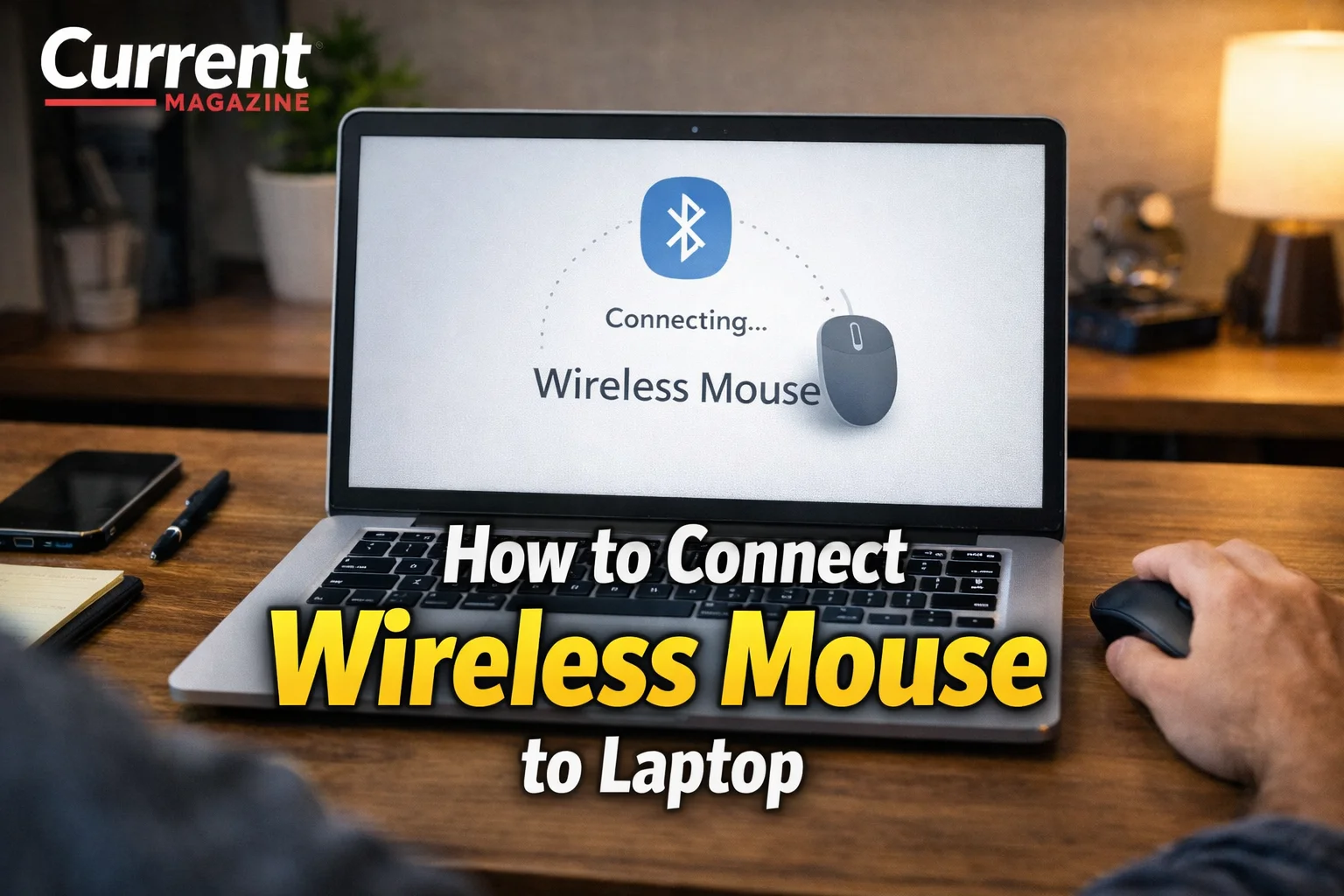
If you need to know how to connect wireless mouse to laptop devices, you’re looking for simple instructions to pair your mouse with your computer without cables. Connecting a wireless mouse to laptop computers, whether using Bluetooth technology or a USB receiver dongle, significantly improves your computing experience by providing more comfortable navigation than a touchpad. Understanding how to pair wireless mouse with laptop, troubleshoot connection issues, and optimize mouse settings helps you get the most from your wireless peripheral. This comprehensive guide covers everything you need to know about connecting wireless mice to laptops, including different connection types, detailed pairing steps for various brands, troubleshooting common problems, and tips for optimal performance.
Understanding Wireless Mouse Types
Before learning how to connect your wireless mouse, it’s important to understand the two main types of wireless mice and how they differ.
USB Receiver (Dongle) Wireless Mice
These mice come with a small USB receiver, often called a dongle, that plugs into your laptop’s USB port. The mouse communicates with this receiver using radio frequency (RF) technology, typically operating on the 2.4GHz band.
Characteristics:
- Small USB receiver (often nano-sized, about the size of a penny)
- Usually plug-and-play, requiring no setup
- Works with any laptop that has a USB port
- No Bluetooth capability needed in your laptop
- Receiver is specific to that mouse (can’t be used with other mice)
- Range typically 15-30 feet
Popular Brands Using USB Receivers:
- Logitech (most models include USB receiver)
- Microsoft Wireless Mobile Mouse series
- HP wireless mice
- Dell wireless mice
- Many budget wireless mice
Bluetooth Wireless Mice
Bluetooth mice connect directly to your laptop’s built-in Bluetooth radio without requiring a separate receiver. They use Bluetooth technology (typically Bluetooth 3.0, 4.0, 5.0, or newer) to communicate.
Characteristics:
- No USB receiver needed
- Connects directly to laptop’s Bluetooth
- Requires manual pairing process
- Frees up USB ports
- Can connect to multiple devices and switch between them (on some models)
- Slightly more complex setup than USB receiver mice
- Requires laptop with Bluetooth capability
Popular Bluetooth Mouse Brands:
- Logitech MX Series (Master, Anywhere)
- Microsoft Surface Mouse and Arc Mouse
- Apple Magic Mouse
- Many premium and multi-device mice
Dual-Mode Mice
Some modern mice offer both connection options, allowing you to choose between Bluetooth or USB receiver:
- Logitech MX Master and MX Anywhere series
- Microsoft Modern Mobile Mouse
- Various premium models
These provide flexibility depending on your laptop’s capabilities and preferences.
Method 1: Connect Wireless Mouse with USB Receiver (Easiest)
This is the simplest method and works with most wireless mice.
Step-by-Step Instructions:
Step 1: Unpack Your Mouse
- Remove the mouse from packaging
- Locate the USB receiver (usually stored inside the mouse battery compartment or attached to packaging)
- Find the batteries or check if the mouse has rechargeable battery
Step 2: Install Batteries
- Open the battery compartment (usually on the bottom of the mouse)
- Insert batteries following the +/- polarity markings
- For rechargeable mice, charge via USB cable before first use
- Replace the battery cover securely
Step 3: Turn On the Mouse
- Locate the power switch (usually on the bottom of the mouse)
- Slide or press the switch to “ON” position
- Some mice have LED indicator lights that illuminate when powered on
- If no obvious switch, the mouse may turn on automatically when batteries are inserted
Step 4: Insert USB Receiver
- Locate an available USB port on your laptop (USB-A port, the standard rectangular USB port)
- Remove any protective cap from the USB receiver
- Insert the receiver firmly into the USB port
- You should hear a USB connection sound (on Windows) or see notification
Step 5: Wait for Automatic Installation
- Windows automatically detects the mouse and installs necessary drivers
- This typically takes 5-30 seconds
- Your cursor should start responding to mouse movements
- Most USB receiver mice are plug-and-play with no additional setup
Step 6: Test Your Mouse
- Move the mouse on your desk or mousepad
- The cursor should move smoothly on screen
- Click the left and right buttons to ensure they work
- Test the scroll wheel if present
- Verify any additional buttons function (side buttons, etc.)
Troubleshooting This Method:
- If mouse doesn’t work immediately, try a different USB port
- Remove and reinsert the USB receiver
- Check battery orientation and ensure fresh batteries
- Look for a connect button on both mouse and receiver (some models require manual pairing)
- Restart your laptop if driver installation seems stalled
Special Note: Unifying Receivers (Logitech)
Logitech’s Unifying technology allows one USB receiver to connect up to six compatible Logitech devices:
- If you have multiple Logitech Unifying devices, you can use one receiver for all
- Download Logitech Unifying Software from Logitech’s website
- Run the software to pair additional devices to your existing receiver
- This frees up USB ports if you have Logitech keyboard and mouse
Method 2: Connect Bluetooth Wireless Mouse to Laptop
Bluetooth mice require a manual pairing process but don’t occupy USB ports.
For Windows 10 and Windows 11:
Step 1: Prepare Your Mouse
- Install batteries or charge the mouse
- Turn on the mouse using the power switch
- Locate the Bluetooth pairing button (usually on bottom, sometimes labeled with Bluetooth symbol)
- Press and hold the pairing button (3-5 seconds) until LED starts flashing
- Flashing light indicates the mouse is in pairing mode and discoverable
Step 2: Open Windows Bluetooth Settings
- Click the Start button
- Click Settings (gear icon) or press Windows key + I
- Click “Devices” (Windows 10) or “Bluetooth & devices” (Windows 11)
- Click “Bluetooth & other devices” in the left sidebar
- Ensure Bluetooth toggle is turned ON (blue)
- If Bluetooth is off, toggle it on and wait a moment
Step 3: Add Your Bluetooth Mouse
- Click “Add Bluetooth or other device” (Windows 10) or “Add device” (Windows 11)
- Click “Bluetooth” in the pop-up window
- Windows begins scanning for nearby Bluetooth devices
- Wait for your mouse to appear in the list (may show as brand name, model number, or “Mouse”)
Step 4: Complete Pairing
- Click on your mouse name in the device list
- Windows connects and pairs with the mouse
- You may see “Pairing” followed by “Connected” status
- The LED on your mouse should stop flashing and either turn solid or turn off
- Your cursor should now respond to mouse movements
Step 5: Verify Connection
- Test mouse movement and clicks
- The mouse should appear in your Bluetooth devices list as “Connected”
- Close Settings window
Alternative Quick Method (Windows 10/11):
- Click the Bluetooth icon in system tray (bottom-right of taskbar)
- Right-click and select “Add a Bluetooth Device”
- Follow steps 3-5 above
For macOS (MacBook, MacBook Pro, MacBook Air):
Step 1: Prepare Mouse for Pairing
- Install batteries or charge mouse
- Turn on mouse
- Press and hold Bluetooth pairing button until LED flashes
Step 2: Open Bluetooth Preferences
- Click the Apple menu (top-left)
- Select “System Preferences” or “System Settings” (macOS Ventura+)
- Click “Bluetooth”
- Ensure Bluetooth is turned on
Step 3: Pair Your Mouse
- Your mouse should appear in the Devices list as discoverable
- Click “Connect” or “Pair” next to your mouse name
- Wait for status to change to “Connected”
- Mouse is now ready to use
Step 4: Test
- Move mouse to verify cursor movement
- Test all buttons and scroll wheel
- Close System Preferences
For Chromebooks:
Step 1: Access Bluetooth Settings
- Click the status area (bottom-right where time appears)
- Click the Settings gear icon
- Select “Bluetooth” from the left sidebar
- Turn on Bluetooth if it’s off
Step 2: Pair Mouse
- Put mouse in pairing mode (press pairing button)
- Mouse should appear in available devices list
- Click “Connect” next to your mouse
- Wait for pairing to complete
Troubleshooting Common Connection Issues
Mouse Not Detected or Won’t Connect
Check Power:
- Verify power switch is ON
- Replace batteries with fresh ones (weak batteries cause connection issues)
- For rechargeable mice, ensure adequate charge
- Check battery orientation (correct +/- placement)
Bluetooth-Specific Issues:
- Ensure Bluetooth is enabled on your laptop
- Put mouse in pairing mode (flashing LED)
- Remove interference: turn off other Bluetooth devices temporarily
- Restart Bluetooth on your laptop (toggle off then on)
- Try pairing closer to laptop (within 3 feet)
USB Receiver Issues:
- Try different USB ports
- Avoid USB hubs; plug directly into laptop
- Clean USB port of dust/debris
- Ensure receiver is fully inserted
- Test receiver in another computer to rule out receiver damage
Cursor Moving Erratically or Lagging
Surface Issues:
- Use proper mousepad or surface (optical mice struggle on glass, mirrors, or extremely glossy surfaces)
- Clean mouse sensor (use compressed air or soft cloth)
- Avoid transparent or highly reflective surfaces
Interference:
- Move wireless router or other RF devices further away
- USB 3.0 ports can interfere with 2.4GHz wireless mice – try USB 2.0 port
- Other wireless devices may cause interference
- Try repositioning USB receiver using USB extension cable
Range Issues:
- Move closer to laptop or USB receiver
- Remove obstacles between mouse and laptop/receiver
- Typical range: 15-30 feet, but walls and interference reduce this
Buttons Not Working Properly
Software Configuration:
- Download manufacturer’s mouse software (Logitech Options, Microsoft Mouse and Keyboard Center, etc.)
- Check button assignments and customize if needed
- Update mouse firmware through manufacturer software
Hardware Issues:
- Test mouse on another computer to isolate problem
- Clean around buttons (dust can interfere with clicks)
- Check for physical button damage
Connection Drops Repeatedly
Battery Issues:
- Weak batteries are the most common cause – replace with fresh batteries
- For rechargeable, ensure full charge
- Some rechargeable mice degrade over time; battery replacement may be needed
Sleep Mode:
- Some mice enter deep sleep to save power and take time to wake
- Adjust power settings in mouse software if available
- This is normal for some budget mice
Driver Problems:
- Update Bluetooth drivers in Device Manager
- Update mouse-specific drivers from manufacturer
- Uninstall and reinstall mouse in Device Manager
Optimizing Your Wireless Mouse Experience
Adjust Mouse Settings for Comfort
Windows Mouse Settings:
- Settings > Devices > Mouse
- Adjust pointer speed to your preference
- Configure scroll speed (lines per wheel notch)
- Enable/disable “Scroll inactive windows when I hover over them”
- For more options: Click “Additional mouse options”
- Adjust double-click speed
- Enable/disable pointer trails
- Change pointer appearance
- Configure button functions
macOS Mouse Settings:
- System Preferences > Mouse
- Adjust tracking speed (cursor speed)
- Adjust scrolling speed
- Enable/disable natural scrolling
- Configure secondary click behavior
Install Manufacturer Software
Most major brands offer software with advanced features:
Logitech Options/Options+:
- Customize button functions
- Adjust pointer speed and scroll behavior
- Configure app-specific settings
- Monitor battery level
- Update firmware
Microsoft Mouse and Keyboard Center:
- Reassign button functions
- Adjust pointer and scroll speed
- Create app-specific profiles
Razer Synapse (gaming mice):
- Adjust DPI settings
- Configure RGB lighting
- Program macros to buttons
- Create game-specific profiles
Extend Battery Life
Power-Saving Tips:
- Turn off mouse when not in use (if you’ll be away for hours)
- Use high-quality batteries or rechargeable batteries
- Reduce LED brightness (if adjustable)
- Enable power-saving features in mouse software
- Some mice auto-sleep after inactivity – this is normal and beneficial
Battery Types:
- Alkaline batteries (AA/AAA): 3-12 months depending on usage
- Rechargeable NiMH batteries: economical and eco-friendly
- Built-in rechargeable: convenient but eventually degrades
Proper Mouse Care
Physical Maintenance:
- Clean mouse sensor regularly (gently wipe with soft, lint-free cloth)
- Clean buttons and scroll wheel (compressed air removes debris)
- Wipe exterior with slightly damp cloth (not wet)
- Store in clean, dry place when traveling
Surface Recommendations:
- Use quality mousepad for best tracking
- Cloth mousepads work well for optical mice
- Hard surface mousepads work for all types
- Avoid using on glass, mirrors, or glossy surfaces
Special Considerations for Different Laptop Types
Ultra-Thin Laptops (USB-C Only)
Modern thin laptops like MacBook Air, Dell XPS, Surface Laptop may lack USB-A ports:
Solutions:
- Use USB-C to USB-A adapter for USB receiver mice
- Choose Bluetooth mouse to avoid adapters
- Consider USB-C mice (becoming more common)
- Multi-port USB-C hubs provide USB-A ports for receivers
Gaming Laptops
Gamers need responsive, high-performance mice:
Recommendations:
- Consider wired gaming mice for zero latency (if gaming performance is critical)
- Modern gaming wireless mice have near-zero latency (Logitech Lightspeed, Razer HyperSpeed)
- Adjust DPI settings for gaming vs. productivity
- Use gaming mousepad for optimal tracking
- Keep charged/fresh batteries for consistent performance
Business Laptops
Professional users benefit from productivity-focused features:
Ideal Features:
- Multi-device capability (connect to laptop and tablet, switch easily)
- Quiet clicks for office environments
- Long battery life (3+ months)
- Portable size for travel
- Precision scrolling for document work
Reconnecting After Sleep or Restart
USB Receiver Mice
USB receiver mice typically reconnect automatically:
- No action needed after waking from sleep
- Reconnects within 1-2 seconds
- If it doesn’t reconnect, remove and reinsert receiver
Bluetooth Mice
Bluetooth mice may take a few seconds longer:
- Usually reconnects automatically after sleep
- May need to click a button to wake mouse
- If it doesn’t reconnect, turn mouse off then on
- Rarely, you may need to repair (remove device and pair again)
When to Consider Replacing Your Wireless Mouse
Signs you need a new mouse:
- Connection drops constantly despite troubleshooting
- Physical damage (cracked shell, broken buttons)
- Cursor skips or moves erratically on all surfaces
- Battery drains in days instead of months
- Uncomfortable for extended use (ergonomic issues)
- Buttons require excessive force or double-click unintentionally
Modern wireless mice are affordable ($15-150) and significantly better than older models in terms of battery life, connection stability, and precision.
The Bottom Line
Connecting a wireless mouse to your laptop is straightforward whether you’re using a USB receiver mouse that plugs in and works immediately, or a Bluetooth mouse that requires manual pairing through your laptop’s Bluetooth settings. USB receiver mice offer the simplest plug-and-play experience ideal for users who want no-fuss setup, while Bluetooth mice free up USB ports and work seamlessly with modern laptops that may have limited USB-A connectivity. Most connection problems stem from weak batteries, Bluetooth being disabled, or interference from other devices, all of which are easily resolved through basic troubleshooting. Once connected, optimizing mouse settings through your operating system or manufacturer software ensures comfortable, productive use, and proper maintenance including regular cleaning and using appropriate surfaces extends your wireless mouse’s lifespan and performance.
FAQs About Connecting Wireless Mouse to Laptop
1. Do I need to install drivers for my wireless mouse?
Most wireless mice work immediately without manual driver installation through plug-and-play functionality, as Windows, macOS, and other operating systems include generic mouse drivers. USB receiver mice typically require zero setup, while Bluetooth mice need pairing but not separate drivers. However, installing manufacturer-specific software (like Logitech Options or Microsoft Mouse and Keyboard Center) unlocks advanced features like customizable buttons, DPI adjustment, and battery monitoring, though this is optional for basic mouse functionality.
2. Can I use a wireless mouse without USB port?
Yes, if you have a Bluetooth wireless mouse and your laptop has built-in Bluetooth capability, you can connect without any USB ports. Most modern laptops include Bluetooth, making this a great option for ultra-thin laptops with only USB-C ports. Alternatively, if you have a USB receiver mouse but no USB-A ports, use a USB-C to USB-A adapter. Some newer mice come with USB-C receivers specifically for modern laptops.
3. Why is my wireless mouse not working after connecting?
Common reasons include: dead or weak batteries (most frequent cause – replace with fresh batteries), power switch left in OFF position, USB receiver not fully inserted into port, mouse not in range (move closer to laptop), Bluetooth not enabled on laptop for Bluetooth mice, or pairing mode not activated (press pairing button again). Also check if the surface you’re using is appropriate – optical mice don’t work well on glass or mirrors.
4. How do I know if my laptop has Bluetooth?
Check by opening Settings > Devices > Bluetooth & other devices on Windows (if you see Bluetooth settings, you have it), or System Preferences > Bluetooth on Mac. Alternatively, look in Device Manager (Windows key + X > Device Manager) for “Bluetooth” category. Most laptops from 2012 onwards include Bluetooth. If your laptop lacks Bluetooth, you can purchase a USB Bluetooth adapter ($10-20) to add this capability.
5. Can I connect multiple wireless mice to one laptop?
Yes, you can connect multiple wireless mice simultaneously, and each will control the cursor. This isn’t typically useful unless sharing the laptop with someone or needing different mice for different tasks. You can have both a USB receiver mouse and a Bluetooth mouse connected at once. However, only one cursor exists, so both mice move the same pointer. Multiple mice can be practical for accessibility needs or specialized workflows.
6. How long do batteries last in wireless mice?
Battery life varies significantly: basic office mice typically last 3-12 months on alkaline batteries, high-performance mice with many features last 1-3 months, rechargeable mice last weeks to months per charge depending on usage and battery capacity, and power-efficient mice with efficiency modes can last over a year. Actual lifespan depends on usage intensity, battery quality, mouse features (more LEDs and sensors drain faster), and whether power-saving modes are enabled.
7. What’s the difference between 2.4GHz and Bluetooth wireless mice?
2.4GHz mice use USB receivers and offer plug-and-play simplicity, slightly lower latency (important for gaming), and work with any laptop with USB ports. Bluetooth mice require manual pairing, don’t need USB receivers (freeing up ports), can connect to multiple devices and switch between them (on some models), and have slightly higher latency (imperceptible for normal use). For gaming, 2.4GHz is preferred; for portability and device switching, Bluetooth is better.
8. Why does my wireless mouse cursor jump or move erratically?
Erratic cursor movement results from dirty mouse sensor (clean with soft cloth or compressed air), inappropriate surface like glass, mirrors, or very glossy desks (use a mousepad), weak or dying batteries (replace immediately), wireless interference from routers, other wireless devices, or USB 3.0 ports, or being out of range (move closer to laptop/receiver). USB 3.0 ports specifically interfere with 2.4GHz mice – try USB 2.0 ports or use USB extension cable.
9. Can I use one USB receiver for multiple wireless devices?
Only with Logitech Unifying receivers, which support up to six compatible Logitech devices (mice and keyboards) on one receiver. Most other brands require one receiver per device. To pair additional devices to a Unifying receiver, download Logitech Unifying Software from Logitech’s website. This is extremely useful for people with Logitech wireless keyboard and mouse who want to use only one USB port instead of two separate receivers.
10. Do I need to disconnect my wireless mouse when not using my laptop?
No, you don’t need to disconnect, but turning off the mouse when away for extended periods (days) conserves battery life. For typical daily use with breaks, leave it on – most wireless mice enter sleep mode automatically after inactivity and wake instantly when moved. USB receivers can stay plugged in permanently; they draw minimal power. Only disconnect if traveling and want to prevent accidental mouse activation in your bag or if you need the USB port for other devices.