
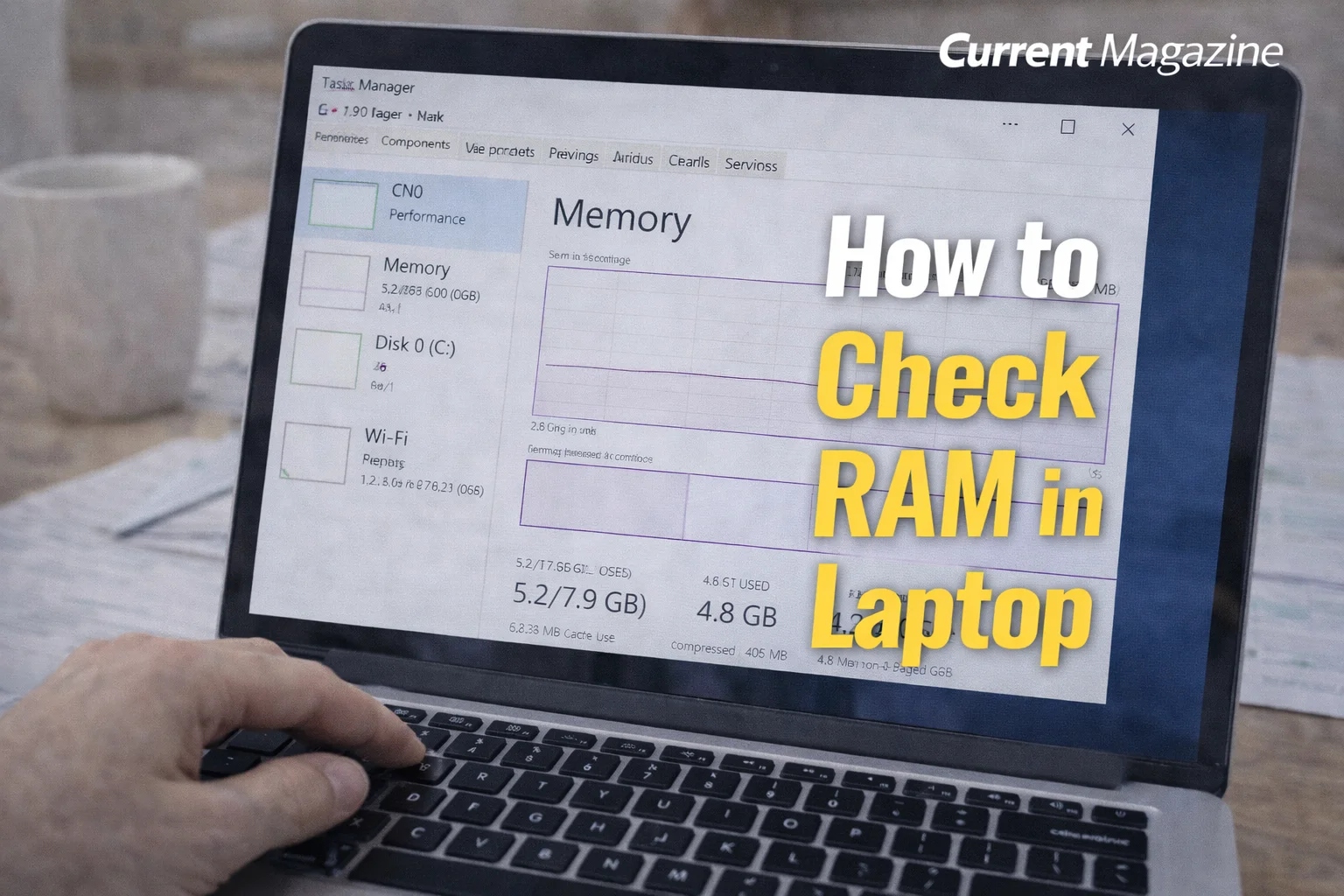
If you need to know how to check RAM in laptop devices, you’re looking to find information about your computer’s memory capacity, speed, type, and usage. Checking your laptop RAM, also known as checking laptop memory or finding out how much RAM you have, is essential before upgrading memory, troubleshooting performance issues, or simply understanding your system specifications. Understanding how to check RAM size, RAM speed, available RAM slots, and current memory usage helps you make informed decisions about your laptop’s performance and upgrade potential. This comprehensive guide covers multiple methods to check RAM on Windows laptops, including system settings, Task Manager, Command Prompt, and third-party tools.
Understanding RAM and Why It Matters
RAM (Random Access Memory) is your laptop’s short-term memory that stores data your computer is actively using. Unlike your hard drive or SSD which stores files permanently, RAM holds information temporarily while your laptop is running. When you open a program, browse the internet, or edit a document, that data loads into RAM for quick access by your processor.
The amount of RAM directly impacts your laptop’s performance. More RAM allows you to:
- Run more programs simultaneously without slowdowns
- Keep more browser tabs open without lag
- Edit larger files in photo, video, or audio editing software
- Play modern games smoothly
- Run virtual machines or development environments
- Multitask efficiently without constant freezing
Common RAM capacities in modern laptops include 4GB (entry-level, minimal for basic tasks), 8GB (standard for most users, good for general use), 16GB (excellent for power users, content creators, and gamers), 32GB or more (professional workstations, heavy multitasking, specialized software).
Knowing your current RAM helps you determine if you need an upgrade, understand why your laptop runs slowly, verify system specifications match what you paid for, or prepare for selling your laptop.
Method 1: Check RAM Using Windows Settings (Easiest Method)
This is the simplest way to check your basic RAM information and works on Windows 10 and Windows 11.
Windows 10 Steps:
- Open Settings
- Click the Start button (Windows icon)
- Click the Settings gear icon
- Or press Windows key + I simultaneously
- Navigate to System Information
- Click on “System”
- In the left sidebar, click “About”
- Scroll down to “Device specifications”
- View RAM Information
- Look for “Installed RAM”
- You’ll see a number like “8.00 GB” or “16.0 GB”
- This shows your total installed memory
This method is quick and requires no technical knowledge, but it only shows total RAM capacity without detailed specifications like speed or type.
Windows 11 Steps:
- Access Settings
- Click Start, then click Settings
- Or press Windows key + I
- Find System Information
- Click “System” in the left panel
- Scroll down and click “About”
- Check RAM Details
- Under “Device specifications,” find “Installed RAM”
- You’ll see the total amount of memory
Note that Windows sometimes shows slightly less RAM than physically installed (for example, 15.9 GB instead of 16 GB) because some memory is reserved for hardware and system processes.
Method 2: Check RAM Using Task Manager (Shows Usage Details)
Task Manager provides more detailed information including current RAM usage, which helps identify if you need more memory.
Steps to Check RAM in Task Manager:
- Open Task Manager
- Right-click on the taskbar (bottom of your screen)
- Select “Task Manager”
- Or press Ctrl + Shift + Esc simultaneously
- Or press Ctrl + Alt + Delete and select “Task Manager”
- View Performance Tab
- If you see a simplified Task Manager, click “More details” at the bottom
- Click the “Performance” tab at the top
- Click “Memory” in the left sidebar
- Review RAM Information You’ll see comprehensive memory details: Total RAM: Displayed at the top right (e.g., “16.0 GB”) Current Usage: Shows how much RAM is currently in use Available Memory: Shows how much RAM is free for new tasks Speed: RAM speed in MHz (e.g., “2400 MHz” or “3200 MHz”) Slots Used: Shows how many RAM slots are occupied (e.g., “2 of 4 slots used”) Form Factor: Shows the RAM type (usually “SODIMM” for laptops) Memory Graph: Visual representation of RAM usage over time Composition: Shows committed, cached, paged, and non-paged memory
- Interpret the Information
- If “In use” is consistently above 80-90%, you likely need more RAM
- “Available” shows memory ready for immediate use
- “Committed” is the total memory allocated to programs (can exceed physical RAM using page file)
Task Manager is excellent for real-time monitoring and understanding if your current RAM is sufficient for your usage patterns.
Method 3: Check RAM Using Command Prompt (Detailed Technical Info)
Command Prompt provides technical details about your RAM configuration, useful for upgrades or troubleshooting.
Using System Information Command:
- Open Command Prompt
- Press Windows key + R to open Run dialog
- Type “cmd” and press Enter
- Or search for “Command Prompt” in the Start menu
- Run Memory Check Command
- Type
systeminfoand press Enter - Wait for the command to gather system information (takes 10-30 seconds)
- Type
- Find RAM Information
- Scroll through the output
- Look for “Total Physical Memory” showing installed RAM
- “Available Physical Memory” shows free RAM at that moment
Using WMIC Command for Detailed RAM Info:
This command provides comprehensive details about each RAM stick installed:
- Open Command Prompt
- Press Windows key + R
- Type “cmd” and press Enter
- Check RAM Capacity
- Type:
wmic memorychip get capacity - Press Enter
- You’ll see capacity of each RAM module in bytes
- Divide by 1,073,741,824 to convert bytes to GB
- For example, 8,589,934,592 bytes = 8 GB
- Type:
- Check RAM Speed
- Type:
wmic memorychip get speed - Press Enter
- Shows speed in MHz for each module
- Type:
- Check RAM Manufacturer
- Type:
wmic memorychip get manufacturer - Press Enter
- Shows who made each RAM stick
- Type:
- Get All RAM Details at Once
- Type:
wmic memorychip get devicelocator, manufacturer, capacity, speed, memorytype, formfactor - Press Enter
- Displays comprehensive information in table format:
- DeviceLocator: Which slot the RAM is installed in
- Manufacturer: RAM brand
- Capacity: Size in bytes
- Speed: MHz rating
- MemoryType: RAM generation (24 = DDR3, 26 = DDR4, 34 = DDR5)
- FormFactor: Physical size (12 = SODIMM for laptops)
- Type:
This method is perfect for planning RAM upgrades because it shows exactly what’s installed and which slots are available.
Method 4: Check RAM Using System Information Tool
Windows System Information tool provides comprehensive system details including memory.
Steps:
- Open System Information
- Press Windows key + R
- Type “msinfo32” and press Enter
- Or search for “System Information” in Start menu
- View RAM Details
- In the System Summary, look for “Installed Physical Memory (RAM)”
- Shows total RAM capacity
- “Total Physical Memory” appears under various sections
- “Available Physical Memory” shows currently free RAM
- Additional Memory Information
- Scroll through the summary for memory-related details
- System information also shows page file size and virtual memory
This tool provides system-wide information useful for technical support or documentation purposes.
Method 5: Check RAM Using Third-Party Software (Most Detailed)
Third-party programs provide the most comprehensive RAM information, including specifications that Windows doesn’t easily show.
CPU-Z (Free and Highly Recommended):
- Download CPU-Z
- Visit the official CPU-Z website (cpuid.com)
- Download the latest version
- Install and run the program
- View Memory Information
- Click the “Memory” tab
- You’ll see:
- Type: RAM generation (DDR3, DDR4, DDR5)
- Size: Total installed memory
- Channel: Single or Dual channel configuration
- NB Frequency: Memory controller frequency
- DRAM Frequency: Actual RAM speed
- CAS Latency: Timing information
- RAS to CAS Delay: Timing specifications
- Timings: Detailed latency numbers
- Check SPD (Serial Presence Detect) Information
- Click the “SPD” tab
- Select each memory slot from the dropdown
- Shows detailed information for each RAM stick:
- Module size
- Maximum bandwidth
- Manufacturer
- Part number
- Serial number
- Manufacturing date
- Voltage
- Supported speeds and timings
CPU-Z is invaluable when purchasing replacement or additional RAM because it shows exactly what specifications you need.
Other Useful Third-Party Tools:
HWiNFO: Comprehensive hardware information tool showing detailed RAM specs, temperatures, and voltages.
Speccy: User-friendly tool by CCleaner that displays all system information including detailed RAM specifications in an easy-to-read format.
AIDA64: Professional system information tool (paid, but trial available) with extremely detailed hardware information and benchmarking capabilities.
Crucial System Scanner: Free tool from Crucial that scans your system and recommends compatible RAM upgrades specifically for your laptop model.
Method 6: Check RAM in BIOS/UEFI
Your laptop’s BIOS or UEFI firmware displays hardware information including RAM before Windows loads.
Steps:
- Access BIOS/UEFI
- Restart your laptop
- Immediately press the BIOS key repeatedly during startup
- Common BIOS keys by manufacturer:
- Dell: F2 or F12
- HP: F10 or ESC
- Lenovo: F1, F2, or Novo button
- Acer: F2 or DEL
- ASUS: F2 or DEL
- MSI: DEL
- Find Memory Information
- Navigate using arrow keys
- Look for “System Information,” “Main,” or “Advanced” tab
- Find “Installed Memory,” “Total Memory,” or similar
- Shows total RAM capacity and sometimes speed
- Exit BIOS
- Press ESC or find “Exit” option
- Select “Exit without saving” to leave BIOS without changes
BIOS shows hardware-level information that’s accurate regardless of operating system issues.
Understanding RAM Specifications
When checking your RAM, you’ll encounter various specifications. Here’s what they mean:
RAM Capacity (Size)
Measured in gigabytes (GB), this is the total storage available. Modern laptops typically have:
- 4GB: Minimum for basic tasks, web browsing, and office work
- 8GB: Sweet spot for most users, handles multitasking well
- 16GB: Recommended for gaming, content creation, and heavy multitasking
- 32GB+: Professional workstations, video editing, 3D rendering, virtualization
RAM Type (Generation)
Indicates the RAM technology generation:
- DDR3: Older standard (2007-2015 laptops)
- DDR4: Current standard (2015-2021 laptops)
- DDR5: Latest generation (2021+ laptops)
- LPDDR: Low-power variants for ultrabooks and MacBooks
Each generation is faster and more efficient than the previous but incompatible with each other.
RAM Speed (Frequency)
Measured in MHz (megahertz), indicates how fast RAM operates:
- DDR3: Typically 1333-1866 MHz
- DDR4: Usually 2400-3200 MHz (gaming laptops may have 3600+ MHz)
- DDR5: Starts at 4800 MHz and goes higher
Higher speeds mean faster data transfer, but real-world impact depends on your CPU and applications.
RAM Channel Configuration
- Single Channel: One RAM stick or multiple sticks not configured for dual channel
- Dual Channel: Two RAM sticks working together, doubles bandwidth
- Quad Channel: Four sticks (rare in laptops, common in workstations)
Dual channel provides better performance than single channel with the same total capacity.
Form Factor
- SODIMM (Small Outline Dual In-line Memory Module): Standard for laptops, smaller than desktop RAM
- DDR: Full-size for desktops (won’t fit in laptops)
- Soldered: RAM permanently attached to motherboard, cannot be upgraded
CAS Latency and Timings
Numbers like “CL16” or “16-18-18-36” indicate RAM response time. Lower numbers mean faster response, but the difference is usually minor for typical users.
How to Determine If You Need More RAM
After checking your RAM, use these indicators to decide if you need an upgrade:
Signs You Need More RAM:
Constant High Usage: If Task Manager shows RAM usage consistently above 80-90%, you’re running out of memory regularly.
Frequent Slowdowns: Your laptop slows down or freezes when running multiple programs, switching between applications, or opening many browser tabs.
Excessive Hard Drive Activity: If you hear constant hard drive noise or see high disk usage when switching programs, Windows is using your hard drive as virtual memory because RAM is full.
Cannot Run Desired Software: Programs won’t install or run because they require more RAM than you have.
Multitasking Issues: You must close programs to open new ones without severe slowdowns.
Monitoring RAM Usage:
Keep Task Manager open in the background and observe memory usage during typical work:
- Below 50%: You have plenty of RAM
- 50-70%: Adequate for current use
- 70-85%: Getting tight, may benefit from upgrade
- Above 85%: Definitely need more RAM
Checking RAM Upgrade Potential
Not all laptops allow RAM upgrades. Here’s how to determine if you can add or replace RAM:
Check Manufacturer Documentation
Visit your laptop manufacturer’s website, enter your model number, and look for specifications or maintenance manuals that show:
- Maximum supported RAM capacity
- Number of RAM slots
- Supported RAM type and speed
Physical Inspection (For Experienced Users)
Some laptops have removable bottom panels allowing you to see RAM slots:
- Power off completely and unplug
- Remove battery if removable
- Unscrew bottom panel (varies by model)
- Look for RAM sticks – you can see how many slots exist and which are filled
Warning: Opening your laptop may void warranty. Proceed only if comfortable and warranty has expired.
Soldered RAM Consideration
Many modern ultrabooks and thin laptops have RAM soldered directly to the motherboard, making upgrades impossible. Macbooks, Microsoft Surface devices, and many premium ultrabooks fall into this category. Always check before purchasing if upgradability matters to you.
Optimal RAM for Different Use Cases
Basic Users (Web Browsing, Email, Office)
- Minimum: 4GB
- Recommended: 8GB
- Reason: Modern browsers and operating systems use significant memory; 8GB provides comfortable multitasking
Students and Office Workers
- Minimum: 8GB
- Recommended: 16GB
- Reason: Multiple applications, documents, spreadsheets, and browser tabs open simultaneously
Gamers
- Minimum: 8GB (for older or less demanding games)
- Recommended: 16GB
- Ideal: 32GB (for gaming while streaming/recording)
- Reason: Modern games require substantial RAM, especially at high settings
Content Creators (Photo/Video Editing)
- Minimum: 16GB
- Recommended: 32GB
- Ideal: 64GB (for professional 4K video editing)
- Reason: Adobe Premiere, Photoshop, and similar programs are extremely memory-intensive
Programmers and Developers
- Minimum: 8GB
- Recommended: 16GB
- Ideal: 32GB (especially with virtual machines)
- Reason: IDEs, compilers, databases, and virtual environments consume significant memory
Professional Workstations (3D Rendering, Data Science)
- Minimum: 32GB
- Recommended: 64GB+
- Reason: Rendering, simulations, and large datasets require enormous memory capacity
Best Practices for RAM Management
Even with sufficient RAM, proper management improves performance:
Close Unused Programs
Don’t leave programs running in the background if you’re not using them. Each open program consumes RAM.
Manage Startup Programs
Disable unnecessary programs from starting automatically:
- Open Task Manager (Ctrl + Shift + Esc)
- Click “Startup” tab
- Right-click programs you don’t need at startup
- Select “Disable”
Limit Browser Tabs
Modern browsers use significant RAM per tab. Close tabs you’re not actively using or use tab suspender extensions.
Clear Temporary Files
Regularly use Disk Cleanup to remove temporary files that can affect memory usage indirectly.
Restart Regularly
Restarting clears RAM and resolves memory leaks from programs that don’t properly release memory.
Update Software
Keep your operating system and programs updated. Updates often include memory management improvements.
Troubleshooting RAM Issues
Windows Doesn’t Recognize All RAM
If you have 16GB installed but Windows shows only 8GB:
Check BIOS: Verify BIOS recognizes full amount Reseat RAM: Power off, remove and reinstall RAM sticks 32-bit Windows Limitation: 32-bit Windows only supports up to 4GB; upgrade to 64-bit Integrated Graphics: Some RAM is reserved for graphics Faulty RAM: One stick may be defective
Running Memory Diagnostics
If you suspect RAM problems:
- Windows Memory Diagnostic
- Press Windows key + R
- Type “mdsched.exe” and press Enter
- Choose “Restart now and check for problems”
- Your computer restarts and runs memory tests
- Results appear after restart
- MemTest86 (More Thorough)
- Download from memtest86.com
- Create bootable USB
- Boot from USB and run tests (takes several hours)
- Identifies defective RAM sticks
The Bottom Line
Checking RAM in your laptop is straightforward using multiple built-in Windows tools, from the simple Settings app showing basic capacity to Task Manager providing usage details and Command Prompt offering technical specifications. Understanding your current RAM helps you make informed decisions about upgrading, troubleshooting performance issues, and ensuring your laptop meets your computing needs. Whether you’re a basic user checking if you have enough memory or a power user planning an upgrade, Windows provides several easy methods to view comprehensive RAM information without requiring technical expertise or third-party software, though tools like CPU-Z offer even more detailed specifications for serious upgrading.
FAQs About Checking RAM in Laptop
1. Why does Windows show less RAM than installed?
Windows displays slightly less than the physically installed amount because some RAM is reserved for hardware and system processes, particularly integrated graphics which borrows RAM since it has no dedicated memory. For example, 16GB might show as 15.9GB or even 14GB if integrated graphics reserves 2GB. This is normal and doesn’t indicate a problem – the “missing” RAM is actually in use by essential system components and hardware.
2. Can I mix different RAM brands or speeds in my laptop?
While technically possible, it’s not recommended. Your laptop will run all RAM at the speed of the slowest stick, negating benefits of faster RAM. Different brands may have timing incompatibilities causing crashes or instability. For best results, use identical RAM sticks (same capacity, speed, brand, and timings). If mixing is unavoidable, at least match capacity and speed, and expect potential stability issues requiring troubleshooting.
3. How do I know if my RAM is DDR3, DDR4, or DDR5?
Use Task Manager (Performance tab > Memory) which shows the type, CPU-Z (Memory tab) which displays detailed information, or Command Prompt command wmic memorychip get memorytype where the number indicates type (24=DDR3, 26=DDR4, 34=DDR5). Your laptop’s specifications on the manufacturer’s website also list RAM type. Knowing this is crucial before purchasing upgrades since different generations are physically incompatible.
4. Is 8GB RAM enough in 2024?
For basic tasks like web browsing, email, office documents, and streaming video, 8GB remains adequate but increasingly tight as websites and applications become more demanding. For gaming, content creation, or heavy multitasking, 16GB is the current sweet spot. If your current 8GB shows consistently high usage (80%+) in Task Manager during normal use, you should upgrade. Consider your specific usage patterns rather than arbitrary numbers.
5. What does “2 of 4 slots used” mean?
This indicates your laptop has four total RAM slots, with RAM installed in two of them, leaving two slots empty for future upgrades. This is great news for upgradeability. However, verify maximum supported capacity and ensure additional RAM matches existing specifications. Some laptops show “2 of 2 slots used” meaning all slots are full, requiring you to replace existing RAM rather than add more.
6. Can I check my laptop’s maximum RAM capacity?
Yes, through several methods: visit your laptop manufacturer’s support website and search your exact model for specifications, use Crucial’s System Scanner tool which identifies your laptop and shows maximum capacity, check your BIOS which often displays maximum supported RAM, or search “[your laptop model] specifications” online. Maximum capacity varies dramatically by model, from 8GB on budget laptops to 128GB on workstation models.
7. Why is my RAM usage so high with few programs open?
High RAM usage with minimal programs can result from: background applications and Windows services consuming memory invisibly, browser tabs (especially Chrome which uses significant RAM per tab), startup programs running automatically in the background, or memory leaks where programs don’t properly release RAM. Check Task Manager’s Processes tab sorted by memory to identify what’s consuming RAM, disable unnecessary startup programs, and restart regularly to clear memory leaks.
8. What’s the difference between RAM and storage?
RAM is temporary, fast memory that stores currently-used data and clears when you power off; your hard drive or SSD is permanent storage that keeps files even when powered off. Think of RAM as your desk workspace where you spread out current projects, while storage is the filing cabinet where you keep everything. You need adequate RAM for smooth operation and sufficient storage for all your files – they serve different purposes.
9. How do I check if my RAM is running in dual channel mode?
CPU-Z (Memory tab) shows “Channel: Dual” if properly configured, Task Manager may indicate this depending on Windows version, or BIOS/UEFI typically displays channel configuration in memory information. For dual channel, you need matching RAM sticks installed in the correct paired slots (usually color-coded on desktops, specific slots on laptops per motherboard manual). Dual channel provides approximately 10-30% better performance than single channel.
10. Can bad RAM cause laptop crashes?
Yes, defective or failing RAM causes various issues including: random crashes, blue screens of death (BSOD), programs closing unexpectedly, system freezing, corrupted files, and boot failures. If you suspect RAM problems, run Windows Memory Diagnostic (search “Windows Memory Diagnostic” in Start menu) or the more thorough MemTest86. Even one bad RAM stick among multiple can cause system-wide instability, requiring identification and replacement of the defective module.