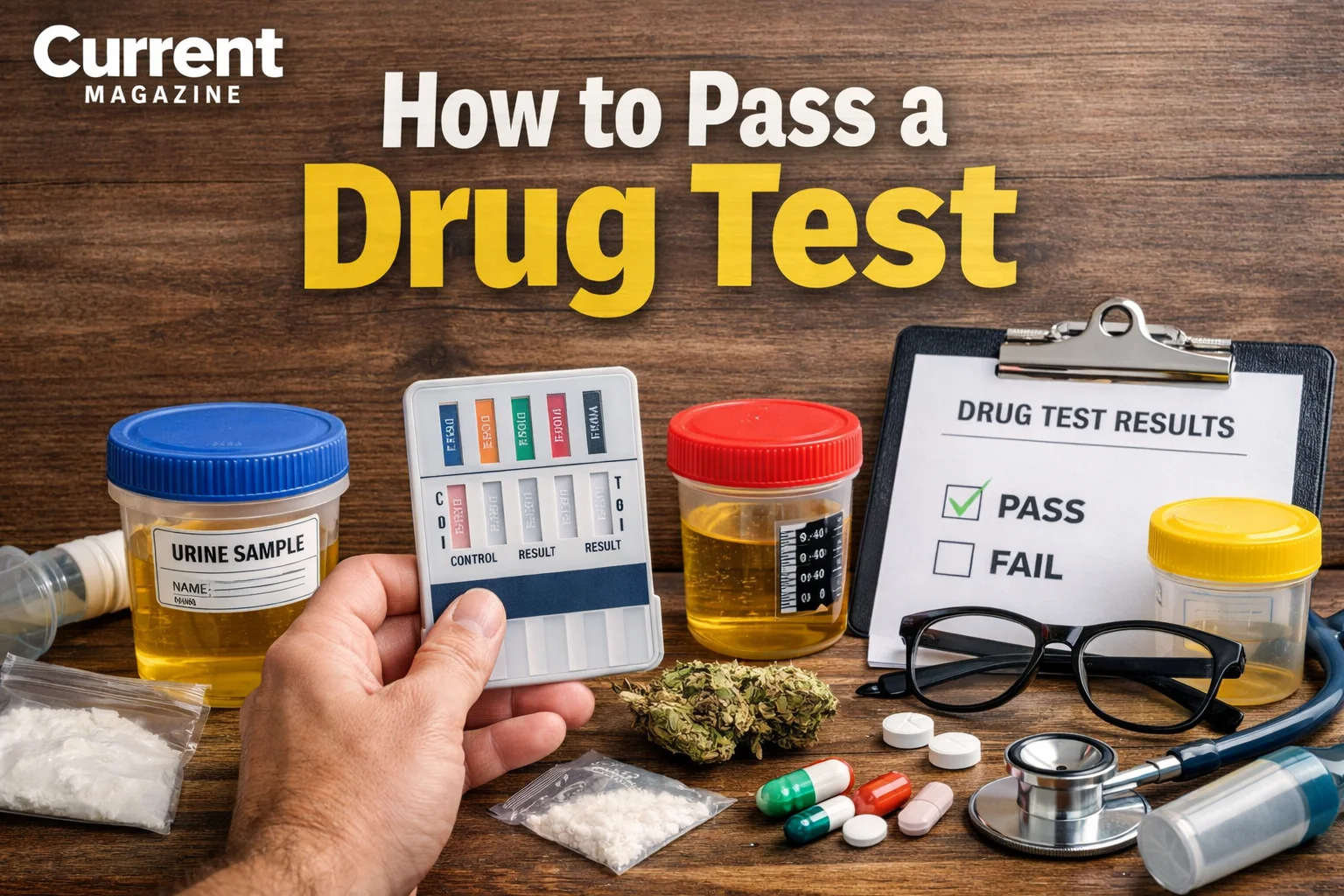
If you’re facing a drug test for employment, legal reasons, or other purposes, you’re probably wondering how to pass a drug test successfully. Whether it’s for a new job opportunity or maintaining your current position, understanding drug testing procedures and knowing your options can help you approach the situation with confidence. This comprehensive guide will walk you through everything you need to know about drug tests, detection windows, and legitimate strategies to help you pass.
Understanding Drug Tests
Drug tests are screening procedures that detect the presence of drugs or their metabolites in your body. Employers, sports organizations, courts, and medical facilities use these tests to ensure safety, compliance, or treatment monitoring.
There are several types of drug tests, each with different detection capabilities:
Urine tests are the most common type. They’re affordable, non-invasive, and can detect most drugs for several days after use. This is the standard test for most employment screening.
Blood tests are more invasive and expensive but provide accurate results about current impairment. These are typically used in legal situations or after accidents.
Hair follicle tests can detect drug use for up to 90 days, making them useful for determining long-term patterns. However, they’re more expensive and take longer to process.
Saliva tests detect recent drug use, usually within the past few days. They’re becoming more popular for roadside testing and workplace screening because they’re quick and hard to cheat.
Detection Windows for Common Substances
Understanding how long drugs stay in your system is crucial for planning ahead. Detection times vary based on the substance, frequency of use, metabolism, and body composition.
Marijuana can be detected in urine for 3-30 days depending on usage frequency. Occasional users might test clean after 3-7 days, while heavy daily users could test positive for a month or longer. In hair, it can be detected for up to 90 days.
Cocaine typically leaves your system relatively quickly. Urine tests can detect it for 2-4 days, though heavy users might test positive for up to two weeks. Blood tests only detect it for about 24-48 hours.
Amphetamines and methamphetamines usually appear in urine tests for 1-4 days after use. However, factors like pH levels in urine can affect detection times.
Opioids like heroin, morphine, and codeine generally stay detectable in urine for 2-3 days. Synthetic opioids may have different detection windows.
Benzodiazepines can remain in your system for varying periods. Short-acting benzos might clear in 1-3 days, while long-acting ones could be detected for weeks.
The Only Guaranteed Method: Abstinence
The most reliable way to pass a drug test is simply not using drugs. If you know a test is coming, the best strategy is to stop using any substances immediately and allow your body time to naturally eliminate them.
Your body has sophisticated systems for processing and removing substances. The liver metabolizes drugs, breaking them down into compounds that your kidneys can eliminate through urine. This natural detoxification process takes time, but it’s the only method with a 100% success rate.
If you have advance notice of a test, calculate the detection window for any substances you’ve used and stop use well before the test date. Combine this with healthy habits to support your body’s natural processes.
Supporting Natural Detoxification
While nothing can speed up elimination dramatically, you can support your body’s natural detoxification processes with healthy habits.
Hydration is important for kidney function and urine production. Drinking plenty of water helps your body flush out metabolites. However, drinking excessive amounts right before a test can dilute your urine too much, which may flag your sample as suspicious or invalid. Aim for consistent hydration throughout the days leading up to your test rather than chugging water at the last minute.
Exercise can help burn fat cells where some drug metabolites are stored, particularly THC from marijuana. However, stop exercising 24-48 hours before your test, as burning fat cells can temporarily release stored metabolites into your system.
Diet plays a role in overall health and metabolism. Eating nutritious foods, particularly those high in fiber, can support digestive health and elimination. Some people focus on foods that support liver function, though research on specific detox diets is limited.
Sleep is when your body does much of its repair and maintenance work. Getting adequate rest supports all your body systems, including those involved in processing and eliminating substances.
What About Detox Products?
The market is full of detox drinks, pills, and programs claiming to clean your system quickly. It’s important to approach these with realistic expectations.
Most detox products work primarily through dilution. They contain large amounts of water along with vitamins and minerals to restore color and specific gravity to your urine so it doesn’t appear diluted. The vitamins, particularly B-complex, give urine its yellow color.
Scientific evidence supporting the effectiveness of commercial detox products is limited. Many people report success, but this could be because they had enough time for natural elimination, they weren’t using substances regularly, or they got lucky with testing thresholds.
Some products may contain adulterants designed to interfere with test results. Using these is risky because modern tests can detect many common adulterants, and tampering with a drug test can have serious consequences.
If you choose to use a detox product, research it carefully, read reviews from multiple sources, and understand that it’s not a guarantee. Never rely solely on a product when important consequences are at stake.
Understanding Your Rights
Knowing your rights regarding drug testing can help you navigate the situation more confidently.
In most states, employers can require drug testing as a condition of employment. However, they must follow certain procedures and typically need to inform you about their drug testing policies. Some states have specific laws about when and how employers can test.
You generally have the right to know what substances you’re being tested for and the testing method being used. You should also have access to your results and an opportunity to explain positive results, particularly if you’re taking prescription medications.
If you’re taking prescription medications that might cause a positive result, inform the testing facility or medical review officer. Bring documentation from your doctor. Legitimate prescriptions are usually not held against you, though this can vary by situation and jurisdiction.
Prescription Medications and Drug Tests
Many legal prescription medications can trigger positive drug tests. Common examples include opioid pain relievers, benzodiazepines for anxiety, Adderall or other ADHD medications, and even some over-the-counter products.
If you’re taking prescription medications, be upfront about it. Most testing processes include a medical review officer who will contact you if you test positive to ask about prescriptions. Having your prescription information ready can quickly resolve these situations.
Keep your medication in its original pharmacy bottle with your name on it. If possible, bring documentation from your prescribing doctor explaining your medical need for the medication.
What Not to Do
Some methods people attempt are ineffective, dangerous, or can get you in serious trouble.
Never submit someone else’s urine. This is fraud and can result in criminal charges in some jurisdictions. Testing facilities use various methods to detect substitution, including temperature checks and sometimes supervised collection.
Don’t add adulterants to your sample. Products like bleach, vinegar, eye drops, or commercial adulterants might seem appealing, but modern tests can detect them. Getting caught using adulterants is worse than a positive result for drugs.
Avoid excessive dilution. While hydration is good, drinking gallons of water to dilute your urine will likely result in an invalid sample due to low creatinine levels or lack of color. You’ll just have to retest, and multiple dilute samples raise suspicion.
Don’t rely on myths. Home remedies like drinking vinegar, using niacin supplements, or consuming excessive amounts of cranberry juice are not supported by scientific evidence and can even be harmful.
Preparing for Your Test
If you have a drug test coming up, here’s how to prepare responsibly:
Stop using any recreational drugs immediately if possible. Calculate the detection window and plan accordingly. The more time between last use and the test, the better your chances.
Maintain healthy habits leading up to the test. Stay hydrated with normal amounts of water, eat a balanced diet, get enough sleep, and exercise moderately (but stop 1-2 days before the test).
Gather any documentation for prescription medications you’re taking. Have your doctor’s contact information ready if needed.
On the day of the test, eat a normal meal beforehand. This helps maintain normal creatinine levels in your urine. Give a midstream sample rather than the very beginning or end of urination.
Be polite and cooperative during the testing process. Fighting or being difficult won’t help your situation and may raise suspicions.
After the Test
Once you’ve provided your sample, the waiting begins. Most employment drug tests take 1-3 days for initial results, though confirmatory testing for positive results can take longer.
If you test positive and have a legitimate explanation (prescription medication, for example), a medical review officer will typically contact you to discuss it before reporting results to your employer.
If you receive a positive result you believe is wrong, you can usually request a retest of your original sample at your own expense. False positives do occur, though they’re relatively rare with modern testing methods.
Moving Forward
Whether you’re facing a drug test or trying to make healthier choices, understanding these processes empowers you to make informed decisions. The most foolproof method to pass any drug test is maintaining a drug-free lifestyle. If you’re struggling with substance use, consider reaching out for support from healthcare professionals, counselors, or support groups.
Remember that drug testing exists for legitimate safety and health reasons in many contexts. Rather than looking for ways around tests, consider whether substance use aligns with your personal goals, health, and responsibilities.
10 Frequently Asked Questions About Drug Tests
- How long does marijuana stay in your system?
Marijuana detection varies widely by usage frequency. Occasional users might test clean in 3-7 days, moderate users in 10-15 days, and daily heavy users may need 30 days or more for complete elimination. Hair tests can detect marijuana use for up to 90 days. Your metabolism, body fat percentage, and hydration also affect detection times.
- Can secondhand smoke cause you to fail a drug test?
Passive exposure to marijuana smoke in normal circumstances is unlikely to cause a failed drug test. Modern tests have cutoff levels specifically designed to avoid false positives from secondhand exposure. However, extreme exposure in an unventilated space over extended periods could theoretically result in detectable levels, though this is rare.
- Will drinking lots of water help me pass a drug test?
Moderate hydration supports natural detoxification, but excessive water intake to dilute your urine typically backfires. Testing facilities measure specific gravity and creatinine levels to detect dilution. An obviously diluted sample is usually rejected as invalid, requiring you to retest, and multiple diluted samples raise red flags. Maintain normal hydration instead.
- Do detox drinks actually work?
Detox drinks provide mixed results and aren’t reliably effective. Most work primarily through dilution while adding vitamins and minerals to mask the dilution. Some users report success, but this could be due to natural elimination time rather than the product itself. There’s limited scientific evidence supporting their effectiveness, so don’t rely on them for high-stakes tests.
- Can exercise help me pass a drug test faster?
Exercise can help burn fat cells where some drug metabolites are stored, particularly THC. However, this process takes time and can temporarily increase metabolite levels in your system as fat cells release their contents. Stop exercising 24-48 hours before your test to avoid this temporary spike. Exercise is best used as part of a long-term approach, not a last-minute solution.
- What happens if I test positive for prescription medication?
Testing positive for prescription medications you’re legitimately taking should not count against you. A medical review officer will contact you to verify your prescription. Bring your prescription bottle with your name on it and have your doctor’s contact information ready. Be honest and upfront about any prescribed medications before or during the testing process.
- How accurate are home drug testing kits?
Home drug testing kits vary in quality but can provide a general indication of whether drugs are present in your system. They’re less sophisticated than laboratory tests and may have different sensitivity thresholds. Use them as a screening tool to check your status before an official test, but understand they’re not perfect predictors of lab results.
- Can I refuse a drug test from my employer?
In most cases, you can refuse a drug test, but there will likely be consequences. For pre-employment testing, refusal typically means you won’t get the job. For current employees, refusal can be treated the same as a positive result, potentially leading to termination. Some industries with safety concerns or federal regulations may require testing, giving you less recourse.
- What’s the difference between a screening test and a confirmatory test?
Screening tests are initial tests that provide quick results but can produce false positives. If you test positive on a screening test, laboratories perform a confirmatory test using more sophisticated methods like gas chromatography-mass spectrometry (GC-MS). Confirmatory tests are highly accurate and legally defensible. Only after confirmatory testing are results typically reported.
- How far back can a hair follicle test detect drug use?
Hair follicle tests typically detect drug use for up to 90 days, though the detection window depends on hair length. Since hair grows about half an inch per month, the standard 1.5-inch sample covers approximately three months. Hair tests can’t detect very recent use (past few days) because drugs need time to grow into the hair shaft, but they’re excellent for detecting patterns of use over time.