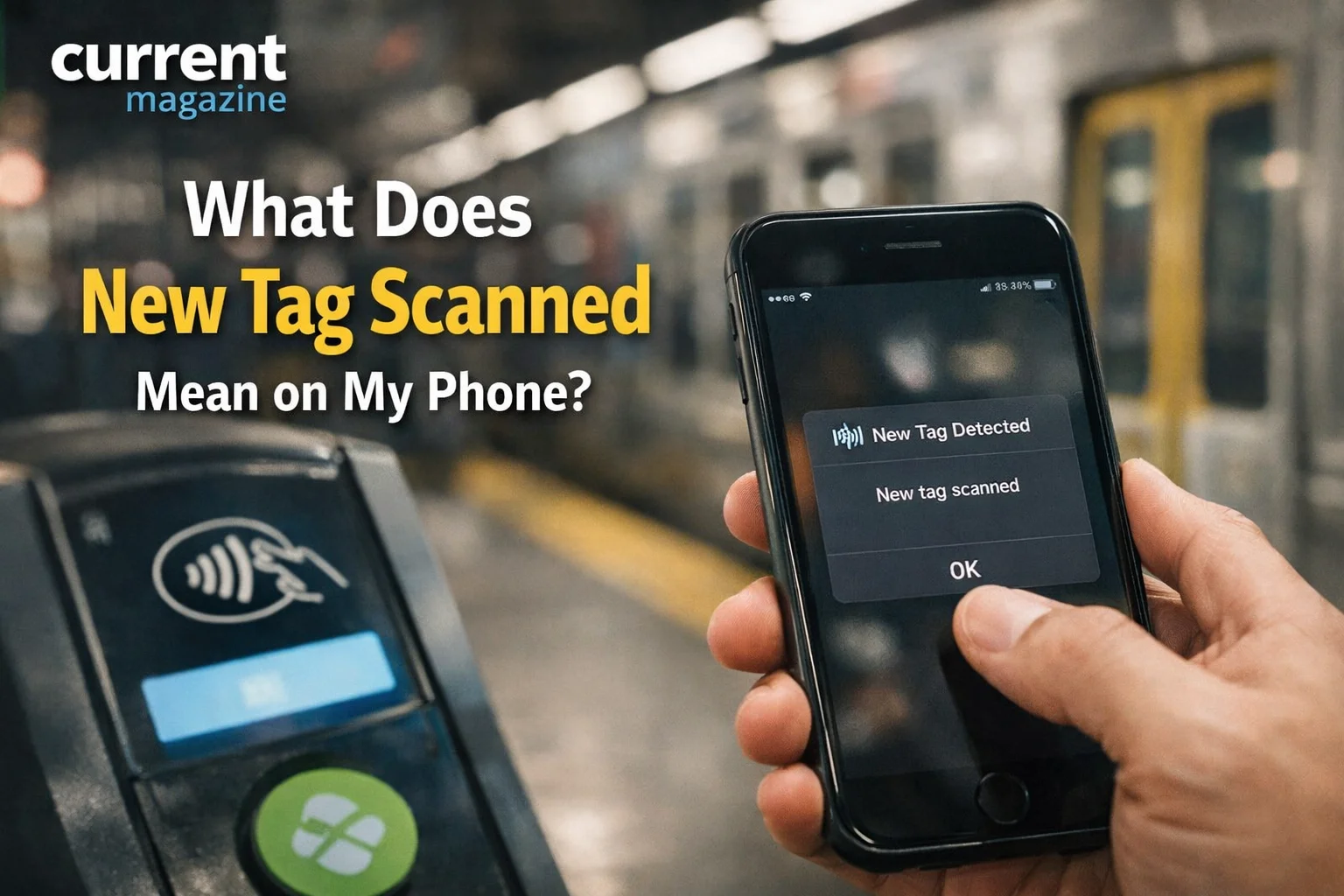
If you’ve seen a notification saying “what does new tag scanned mean on my Phone’ you’re experiencing a feature related to NFC (Near Field Communication) technology. This mysterious message appears on both Android phones and iPhones, often popping up unexpectedly when you’re not actively trying to scan anything. The “new tag scanned” notification indicates that your phone’s NFC sensor detected a wireless chip or tag in close proximity—usually within a few centimeters. While this might sound technical or concerning, it’s actually a common occurrence that happens when your phone comes near credit cards, transit passes, contactless payment terminals, or various NFC-enabled objects. Understanding what triggers this notification and what it means for your phone’s security will help you feel more confident about this technology.
What Is NFC and Why Does Your Phone Have It?
To understand the “new tag scanned” notification, you need to know about the technology behind it.
NFC Explained Simply
NFC stands for Near Field Communication. It’s a wireless technology that allows two devices to communicate when they’re very close together—typically within 4 centimeters or about 1.5 inches. Think of it as an extremely short-range version of Bluetooth that works instantly without any pairing or setup process.
Your smartphone has a small NFC chip embedded inside, usually near the back of the phone. This chip can both read information from other NFC chips and send information to them. The communication happens in milliseconds, making NFC perfect for quick transactions and interactions.
What Makes NFC Different from Bluetooth or Wi-Fi
Unlike Bluetooth, which works across rooms and requires pairing, NFC only works when devices are nearly touching. Unlike Wi-Fi, which connects to networks and the internet, NFC is designed for direct device-to-device communication. NFC’s extremely short range is actually a security feature—it’s very hard for someone to intercept NFC communications without physically getting between your phone and the tag.
NFC uses very little power and doesn’t require manual connection setup. Just bring your phone close to an NFC tag or device, and communication happens automatically.
Why Your Phone Has NFC Technology
Almost all modern smartphones include NFC chips because they enable contactless payments through Apple Pay, Google Pay, and Samsung Pay. They allow quick pairing with some Bluetooth devices and accessories. They support transit card functionality in many cities. They enable instant information sharing between phones. They work with smart home devices and automation tags. And they interact with NFC-enabled products and marketing materials.
Even if you’ve never consciously used NFC, you probably have if you’ve ever used mobile payments or tapped your phone on a payment terminal.
Common Reasons You See “New Tag Scanned”
The notification appears for various everyday reasons, most of which are completely harmless.
Accidental Contact with Credit Cards and Debit Cards
This is the number one cause of unexpected “new tag scanned” notifications. Most modern credit and debit cards have NFC chips embedded in them for contactless payments—you might see a small wireless symbol on your card indicating this feature.
If you keep your phone in the same pocket as your wallet, purse, or bag containing these cards, your phone will detect them when they get close enough. Even through fabric, leather, or thin cases, the NFC sensor can pick up these cards. You’ll often see the notification right after pulling your phone from your pocket or setting it on top of your wallet.
Your phone isn’t charging the card or accessing sensitive information—it’s simply detecting that an NFC chip is present nearby.
Transit Cards and Access Badges
Many public transportation systems use NFC-enabled cards or passes. Metro cards, bus passes, and subway cards often contain NFC chips. Similarly, workplace access badges, gym membership cards, hotel room keys, and building entry cards typically use NFC or RFID technology.
When your phone gets near these cards, you’ll see the “new tag scanned” notification. This commonly happens when you have your badge clipped to your bag, your transit card in a phone wallet case, or these items in the same pocket as your phone.
Payment Terminals and Card Readers
Contactless payment terminals in stores emit NFC signals to communicate with payment devices. When you walk past a checkout counter, stand in line near a terminal, or place your phone on or very close to a payment terminal, your phone might scan it and show the notification.
You’re not making a purchase or charging anything—your phone is just detecting the presence of the NFC reader. Actual payments require authentication like fingerprint, face recognition, or PIN entry, so you can’t accidentally pay for something just by getting your phone close to a terminal.
Smart Tags and Home Automation
Some people use NFC tags for home automation and shortcuts. These are small, programmable stickers or tokens that trigger specific actions when scanned. People place them on nightstands to set bedtime routines, by doors to trigger smart home scenes, on desks to launch work apps, or in cars to start navigation and music.
If you or someone in your household uses NFC tags and you don’t know where they’re placed, you might scan them accidentally when setting your phone down. The “new tag scanned” notification tells you your phone detected the tag.
Product Packaging and Retail Displays
Manufacturers and retailers increasingly embed NFC tags in product packaging, price tags, posters, and displays. These tags might link to product information, promotional offers, authenticity verification, or interactive experiences.
Setting your phone on product packaging at home, standing close to retail displays in stores, or handling items with embedded NFC tags can trigger the notification. This is especially common with electronics, luxury goods, and smart products.
Other Phones and NFC Devices
In crowded places like public transportation, concerts, or busy restaurants, getting very close to another phone with NFC enabled can sometimes trigger the notification. This is rare since phones need to be extremely close, but it can happen when devices are in adjacent pockets or bags.
Some wireless chargers, smart accessories, and IoT devices also use NFC for pairing or identification, and proximity to these can cause the notification.
Is the “New Tag Scanned” Notification Dangerous?
Seeing this notification might make you worry about security, but it’s almost always harmless.
Understanding Detection vs. Action
This is crucial: your phone detecting an NFC tag is completely different from doing something with that tag. When you see “new tag scanned,” your phone has simply noticed that an NFC chip is nearby. It hasn’t automatically executed commands, made payments, downloaded anything, or shared your information.
Think of it like your phone saying “I notice there’s an NFC chip here” rather than “I just did something with this chip.” For most actions to occur, you need to actively tap the notification or confirm an action.
Can You Accidentally Make Payments?
No, you cannot accidentally make contactless payments just because your phone detected a terminal. Payment apps like Apple Pay, Google Pay, and Samsung Pay require authentication before processing transactions. You need to use your fingerprint, face recognition, PIN, or passcode to authorize payments.
Even if your phone is right next to a payment terminal and you see the “new tag scanned” notification, no money will be charged without your explicit authorization. Modern payment systems have multiple security layers specifically to prevent accidental transactions.
What About Data Security?
NFC tags cannot access your personal information, browse your files, or steal your data. The communication is one-way in most cases—the tag sends information to your phone, not the other way around. The tag might contain a website URL, contact information, Wi-Fi credentials, or simple commands, but it cannot extract your photos, messages, passwords, or other sensitive data from your phone.
Your phone’s operating system also protects you by requiring permission before executing most NFC-triggered actions beyond simple detection.
Potential Security Concerns (Very Rare)
While NFC is generally very secure, there are theoretical vulnerabilities that are important to know about, even though they’re extremely rare in practice. Malicious NFC tags could potentially direct you to phishing websites (though your phone will show you the URL before opening it), attempt to exploit software vulnerabilities (which requires outdated phone software), or try to initiate unwanted actions (which usually require your confirmation).
These scenarios are uncommon because NFC’s extremely short range makes it hard to attack someone without them noticing, modern phones have security measures that prevent unauthorized NFC actions, and malicious tags are rare compared to the billions of legitimate NFC interactions daily.
To stay safe, don’t scan random unknown NFC tags from suspicious sources, keep your phone’s operating system updated with security patches, and pay attention to any prompts or URLs before confirming NFC-initiated actions.
How to Stop Getting “New Tag Scanned” Notifications
If these notifications bother you, you have several options to reduce or eliminate them.
Turn Off NFC Completely
The most straightforward solution is disabling NFC when you’re not actively using it. Here’s how on different devices:
On Android phones: Swipe down from the top of your screen to access Quick Settings. Look for an NFC icon (it might look like a wireless symbol or say “NFC”) and tap it to toggle NFC off. If you don’t see it in Quick Settings, go to Settings > Connected Devices > Connection Preferences > NFC and toggle it off. The exact path varies by manufacturer (Samsung, Google, OnePlus organize settings differently), so you might need to search for “NFC” in your settings menu.
On iPhones: NFC is always enabled on iPhones and there’s no built-in way to completely disable it through settings. However, iPhones handle NFC differently than Android phones—they’re more selective about showing notifications and usually only activate NFC functionality when you’re using specific features like Apple Pay or scanning NFC tags intentionally through apps. iPhones with iOS 14 and later can read NFC tags in the background, but they’re less likely to show intrusive notifications for every detection.
Separate Your Phone from NFC Cards
Physical separation prevents accidental scanning. Keep your phone and wallet in different pockets—one in front, one in back, for example. Use separate bag compartments for your phone and cards. Consider RFID-blocking wallets or phone cases that shield NFC signals. Avoid phone wallet cases that hold credit cards directly against your phone’s back.
Creating even a few inches of separation between your phone and NFC-enabled cards will prevent most accidental scans.
Remove Cards from Phone Cases
Many people use phone cases with card slots on the back. While convenient, this puts NFC-enabled cards directly against your phone’s NFC sensor (usually located in the upper-middle or center back of the phone). This virtually guarantees constant “new tag scanned” notifications.
If you must keep cards in your phone case, try placing non-NFC items (like cash or non-contactless cards) between your phone and any NFC-enabled cards. Better yet, use a separate card holder.
Adjust Notification Settings
You can’t always completely disable the NFC notification, but you can make it less intrusive on some Android phones. Go to Settings > Apps > NFC Service (you might need to show system apps to see this). Select Notifications and adjust the notification priority to make it silent or minimize it. Some phones allow you to turn off the notification entirely while keeping NFC functionality enabled.
This varies significantly by phone manufacturer and Android version, so explore your specific phone’s notification settings.
Use NFC Only When Needed
Many people find a middle ground: keeping NFC off most of the time and only enabling it when needed for payments or intentional scanning. Add the NFC toggle to your Quick Settings for easy access, turn it on when approaching a payment terminal or when you want to scan something, and turn it off again afterward.
This approach gives you NFC benefits when you want them while eliminating unwanted notifications the rest of the time.
Understanding What Your Phone Does When It Scans Tags
Knowing what happens during NFC scanning helps you understand the notifications better.
The Scanning Process
When your phone’s NFC sensor detects a tag nearby, it reads the data stored on that tag, displays the “new tag scanned” notification, and waits for your input before taking most actions. The tag might contain various types of information like a website URL, contact information (vCard), Wi-Fi network credentials, plain text, instructions to launch specific apps, or commands for smart home devices.
Your phone reads this information but typically doesn’t execute it automatically—you need to tap the notification or confirm the action.
What Different Tags Do
Understanding common NFC tag uses helps you know what to expect. URL tags open websites when you confirm (your phone will show you the URL first). Contact tags add someone to your contacts when you approve. Wi-Fi tags connect you to networks (after you confirm). App launch tags open specific apps or app features. Smart home tags trigger automation routines you’ve set up. Payment tags communicate with payment terminals (requiring your authentication).
In most cases, you’ll see a preview or prompt before anything actually happens.
Background NFC Reading on iPhones
iPhones running iOS 14 and later can read NFC tags automatically in the background without opening an app. When your iPhone detects an NFC tag, a notification banner appears at the top of the screen showing what the tag contains, and you can tap it to take action or ignore it if you’re not interested.
This background reading is designed to be less intrusive than the full “new tag scanned” notifications common on Android devices.
Common Uses for NFC Tags You Might Encounter
NFC technology is more widespread than most people realize. Here are legitimate uses you’ll commonly encounter.
Mobile Payments
This is the most popular NFC use. When you hold your phone near a contactless payment terminal, NFC communicates encrypted payment information. The transaction requires your authentication (fingerprint, face recognition, or PIN), so the “new tag scanned” notification you see when near terminals doesn’t mean you’ve made a purchase.
Apple Pay, Google Pay, Samsung Pay, and other mobile payment apps all use NFC technology.
Public Transportation
Many cities use NFC for transit systems. Instead of physical cards, you can tap your phone on turnstiles or card readers to pay fares or verify passes. The NFC chip in your phone communicates with the transit system’s reader.
If you live in a city with NFC-enabled public transit, you might see “new tag scanned” notifications near turnstiles and bus card readers.
Smart Home Automation
Tech enthusiasts use NFC tags to create convenient shortcuts. Examples include a bedside tag that dims lights, sets alarms, and enables Do Not Disturb mode when scanned, a door tag that turns off all smart home devices when you leave, a car tag that launches navigation and plays music, or a desk tag that opens work apps and sets your phone to work mode.
These tags are programmable with apps like NFC Tools, Trigger, or Shortcuts (on iPhone), and they make routine tasks easier.
Product Authentication and Information
Luxury brands embed NFC tags in products to verify authenticity and provide product information. Scanning the tag confirms the item is genuine and might display manufacturing details, care instructions, or warranty information.
Wine bottles, clothing, electronics, and other products increasingly use NFC for enhanced customer experiences.
Business Cards and Contact Sharing
Some business cards contain NFC chips that instantly share contact information when tapped with a phone. This is faster than manually entering details or using QR codes.
Similarly, two NFC-enabled phones can share contact information, photos, or files by tapping together (though this feature varies by phone manufacturer).
Hotel Room Keys and Access Control
Some hotels issue NFC-enabled room keys that work with smartphones, or allow you to use your phone as a room key through their app. Offices and buildings use NFC badges for access control.
When your phone detects these access systems, you’ll see the “new tag scanned” notification.
Troubleshooting NFC Issues
Sometimes NFC doesn’t work when you want it to, or works too often when you don’t.
NFC Not Working When You Need It
If you’re trying to make a payment or scan a tag intentionally and nothing happens, verify that NFC is turned on in your settings. Remove thick phone cases that might block the NFC signal—some cases with metal or thick materials interfere with NFC. Position your phone correctly by placing the back of the phone (where the NFC chip is located) against the tag or terminal. Remove credit cards from phone cases, as they can interfere with NFC communication. And restart your phone to refresh the NFC function if it seems unresponsive.
The NFC sensor is usually in the back of the phone near the top-middle or center. Try different positions if the first attempt doesn’t work.
Getting Too Many Accidental Notifications
If you’re constantly seeing “new tag scanned” notifications, identify the source by checking your pockets, wallet, and bag for NFC-enabled cards. Look around where you normally set your phone down—there might be NFC tags you’re unaware of. Consider turning NFC off when not actively using it. Separate your phone from NFC cards and badges. And remove cards from phone wallet cases.
Phone Won’t Scan Specific Tags
Some NFC tags are formatted in ways certain phones can’t read, or they might be damaged. Try scanning the tag with a different phone to see if it works—this helps determine if the problem is your phone or the tag. Make sure you’re holding your phone close enough and in the right position (NFC chips need to be within a few centimeters). Check if you need a specific app to read certain types of tags—some specialized NFC tags require particular apps to decode their information.
Battery Impact of NFC
NFC uses minimal battery power when enabled but idle. The power consumption is so small that leaving NFC on has negligible impact on battery life. NFC only actively uses power during the brief moments when it’s communicating with a tag or device.
You don’t need to turn off NFC to save battery—other factors like screen brightness and app background activity have much bigger impacts.
Privacy Considerations with NFC
Understanding NFC privacy helps you make informed decisions about using the technology.
What Information Can Others Access?
When your phone scans an NFC tag, the tag cannot access your personal information. NFC tags are passive—they contain information that they broadcast to your phone, but they cannot browse your phone’s contents or extract data. Your personal photos, messages, emails, passwords, and other information remain completely inaccessible to NFC tags.
The only exception is if you intentionally use NFC to share information, like sharing a contact card or photo with another phone—but this requires your active participation and confirmation.
Can Someone Track You Through NFC?
NFC’s extremely short range (a few centimeters) makes tracking impractical. Someone would need to be within touching distance to interact with your phone’s NFC, and you’d likely notice. Unlike Bluetooth or Wi-Fi, which broadcast signals across rooms or buildings, NFC is too short-range for practical tracking or surveillance.
Protecting Your Privacy
To maximize NFC privacy, turn off NFC when you’re not using it, especially in crowded public places. Don’t scan unknown NFC tags from untrusted sources—treat them like you would suspicious links or QR codes. Pay attention to any URLs or prompts before confirming NFC actions. Keep your phone’s operating system updated for the latest security patches.
NFC is generally very secure, but basic precautions keep you even safer.
The Future of NFC Technology
NFC technology continues to evolve and expand into new areas.
More retailers and venues are adopting contactless payments, making NFC more universally useful. Car manufacturers are implementing NFC for phone-as-key systems, letting you unlock and start your car with your phone. Healthcare providers are exploring NFC for patient identification and medical record access. Museums and tourist attractions use NFC tags to provide interactive information. Schools and universities implement NFC for student IDs and campus access.
As NFC becomes more common, you’ll encounter more situations where the “new tag scanned” notification appears. Understanding what it means helps you take advantage of the technology confidently.
The Bottom Line
The “new tag scanned” notification on your phone simply means your device’s NFC sensor detected a wireless chip nearby. This usually happens accidentally when your phone comes close to credit cards, transit passes, payment terminals, NFC tags, or other NFC-enabled objects. It’s not dangerous—your phone is just alerting you that it detected an NFC signal, not that it performed any action.
If these notifications bother you, you can turn off NFC when not using it, separate your phone from NFC-enabled cards, or adjust notification settings. If you use NFC features like mobile payments or smart home automation, occasional accidental notifications are normal and harmless.
Understanding NFC helps you use your phone more effectively and appreciate the technology that makes modern conveniences like contactless payments, instant information sharing, and smart home automation possible. The next time you see “new tag scanned,” you’ll know exactly what’s happening and whether any action is needed.
10 Frequently Asked Questions
- What triggers the “new tag scanned” notification?
The notification appears when your phone’s NFC sensor detects an NFC chip or tag within about 4 centimeters (1.5 inches). Common triggers include credit cards with contactless payment chips in your wallet or pocket, transit passes and access badges, contactless payment terminals in stores, NFC tags embedded in product packaging or displays, and other phones or NFC-enabled devices very close by. The notification is just detection—it doesn’t mean any action was taken. - Can someone steal my credit card information through NFC?
No, someone cannot steal your credit card information just because your phone detected your card’s NFC chip. When your phone shows “new tag scanned” near your credit card, it’s only detecting that the chip exists—it’s not reading your card number, CVV, or other sensitive information. Additionally, contactless payment chips use encryption and tokenization that make the transmitted data useless to anyone intercepting it. Standard NFC scanning cannot capture complete card details or make unauthorized charges. - How do I turn off “new tag scanned” notifications?
On Android phones, you can turn off NFC entirely by going to Settings > Connected Devices > NFC and toggling it off, or by using the NFC quick toggle in your notification shade. Some Android phones also let you silence NFC notifications specifically without disabling the function. On iPhones, NFC cannot be completely disabled, but iOS handles it less intrusively than Android and only shows notifications for actionable NFC tags. The most practical solution is keeping NFC off unless you’re actively using it. - Is NFC safe to use for payments?
Yes, NFC is very safe for payments and is often more secure than using physical cards. NFC payment systems use encryption, tokenization (substituting your real card number with a temporary token), and authentication (fingerprint, face recognition, or PIN) before processing transactions. The extremely short range of NFC makes it nearly impossible for someone to intercept your payment information without being directly between your phone and the terminal. You cannot make accidental payments just by having NFC enabled. - Why do I keep getting this notification when my phone is in my pocket?
You’re almost certainly carrying NFC-enabled cards (credit cards, debit cards, transit passes, or access badges) in the same pocket as your phone or in a wallet very close to it. Modern payment cards have contactless chips that your phone detects through fabric and leather. The solution is to keep your phone and wallet in different pockets, use an RFID-blocking wallet, or remove cards from phone wallet cases that hold them directly against your phone’s back. - Can I use “new tag scanned” notifications for anything useful?
While the notification itself is just an alert, NFC technology has many useful applications. You can use NFC tags you program yourself to automate tasks, make contactless payments at stores, share information quickly between phones, connect to Wi-Fi networks without entering passwords, or interact with smart home devices. To take advantage of these features, you need to actively use NFC rather than just dismissing accidental scan notifications. - What’s the difference between NFC and RFID?
NFC (Near Field Communication) is actually a subset of RFID (Radio Frequency Identification) technology, but with some important differences. NFC works at very short ranges (up to 4cm), can both read and write data, and enables two-way communication. RFID can work at longer ranges (up to several meters), is typically one-way communication, and is used for things like inventory tracking. Many cards use RFID technology, and your phone’s NFC sensor can detect some RFID chips, triggering the “new tag scanned” notification. - Does having NFC turned on drain my phone’s battery?
No, having NFC enabled has a negligible impact on battery life. NFC uses minimal power when idle and only actively consumes energy during the brief moments when it’s communicating with a tag or device (usually milliseconds). The battery drain is so small that you won’t notice any difference in how long your phone lasts. Other factors like screen brightness, GPS, and background apps have much more significant effects on battery life than NFC. - What should I do when I see the notification?
In most cases, you can simply ignore or dismiss the notification—it’s just informing you that NFC detected something. If you were intentionally trying to scan an NFC tag or make a payment, tap the notification to see what action is available. If the notification appears unexpectedly and frequently, identify what’s triggering it (usually cards in your pocket) and separate your phone from the NFC source. Never tap the notification if you don’t know what triggered it or trust the source. - Can NFC work through phone cases?
Yes, NFC works through most phone cases. NFC signals can penetrate thin materials like plastic, silicone, and leather without significant interference. However, very thick cases, cases with metal components, or cases with RFID-blocking features can interfere with NFC functionality. If your NFC isn’t working for payments or intentional scanning, try removing your case temporarily. Most standard phone cases won’t prevent the “new tag scanned” notification from appearing when NFC chips are nearby.